


Media Realm’s Radio Websites now has a powerful system available to display popups and opt-in forms to visitors. Radio Stations can use this popup feature to highlight special events, campaigns, and encourage email list sign-ups.
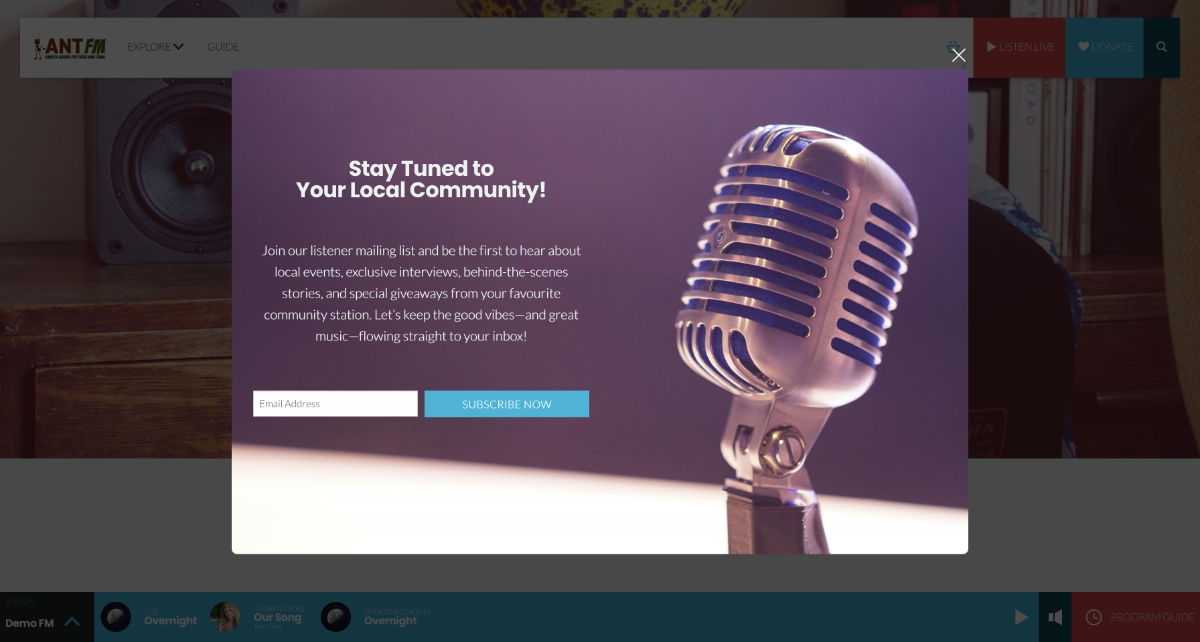
Care should be taken to avoid saturating users with many popups. We have options to limit the recurrence of popups, but discretion is required from a site’s administrator to ensure they don’t create too many.
Popups are built in the Block Editor, so large amount of flexibility is available.
Configuring Popups in Radio Websites
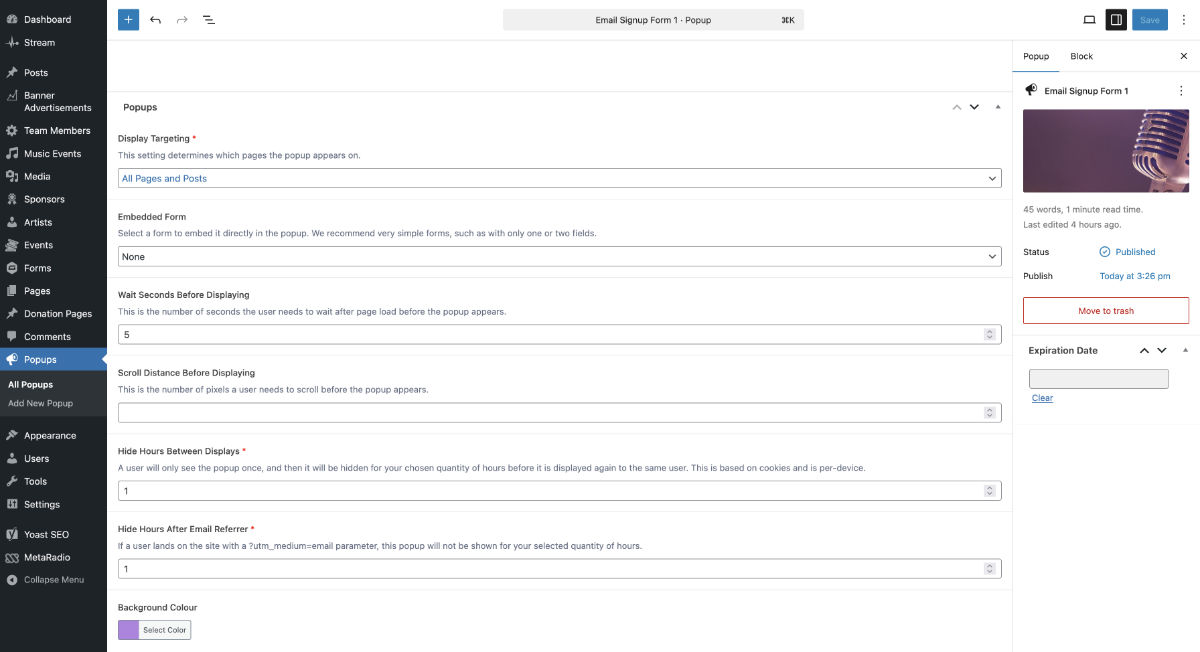
Popups are created via the ‘Popups’ item in the side menu. You can create unlimited Popups, and use the normal scheduling features to set start and end dates for each popup.
| Setting Name | Use Guide |
|---|---|
| Block Editor | Use the Block Editor to design your Popup. You can insert blocks such as Headings, Paragraphs, Images, Buttons, Forms, Columns, and more. |
| Display Targeting | Choose which pages to display your Popup on. Options include: All Pages and Posts, All Posts, Homepage, and Specific Pages. |
| Embedded Form | If you wish to embed a form in a separate column, select your form here. |
| Wait Seconds Before Displaying | This number is the quantity of seconds to wait after the page loads before showing the popup. You would typically set this to 5-15 seconds. |
| Scroll Distance Before Displaying | If you want a user to scroll a certain distance down the page before they see the popup, set this to your quantity of pixels. |
| Hide Hours Between Displays | Popups are hidden for a certain duration before appearing again to the same user. Set this to the quantity of hours you want to wait before the same user sees this popup again. We recommend setting this to 48 or more hours. |
| Hide Hours After Email Referrer | If a user lands on the site with a ?utm_medium=email parameter, this popup will not be shown for your selected quantity of hours. This feature can be used to hide popups from users who come from an email newsletter. You may want to hide email signup forms from visitors who are already on your email list. |
| Background Colour | Set a static colour for your popup’s background. |
| Background Image | Set an image for your popup’s background. This overrides the image. |
Once you have configured your popup, save it as a draft and then click the “Preview Popup” button in the header. This shows your popup on the homepage, but ignores the ‘Hide Hours’ settings so you can easily see it.
Once you publish your Popup, you can test it repeatedly in a Private/Incognito browsing window. This bypasses the ‘Hide Hours’ settings.
If you need assistance setting up this feature on your site, please contact our support team.