


Do you want to send Now Playing Song Data to the your StreamS Live Encoder, from your Radio Automation System? MetaRadio makes this possible. This article explains the setup of MetaRadio and StreamS Live Encoder, allowing the current song title, artist, and other dynamic metadata, to be displayed on platforms fed by your streaming encoder.
Sending song now-playing information to your live streams has clear advantages for your listeners and also your station. Now Playing data enhances the listener experience by allowing them to discover new tracks, and unlocks additional advertising opportunities by displaying promotional messages on your screen.


StreamS Live Encoder is a professional streaming encoder platform from Modulation Index. It encodes audio live streams into formats such as HLS, HE-AAC, FLAC, MP3, and more. MetaRadio can send data to StreamS, for embedding within any of your stream formats.
What is MetaRadio?
MetaRadio is software which acts as a connector for your radio station’s metadata. It enables you to send your now playing data to dozens of different types of systems (including RDS), and also unlocks new opportunities for revenue and promotions by inserting commercial and non-commercial messages between your song data. While many automation systems can send data directly to some of these third party broadcast systems, MetaRadio aims to connect all your systems together and provide advanced features.
MetaRadio takes all the hard work out of connecting your metadata. There’s no need for custom scripting or expensive systems – MetaRadio does everything you need out of the box.
Getting Song Data From your Radio Automation System
Before you can send your song metadata to your StreamS Live Encoder, you must first install MetaRadio and connect it to your radio automation system.
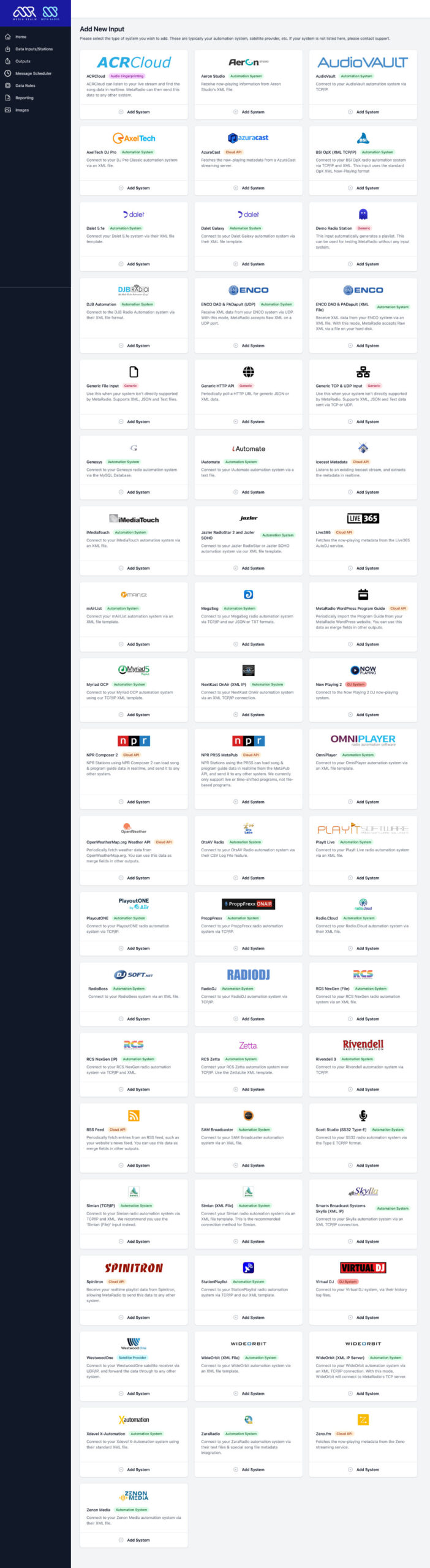
MetaRadio has over 50 different input system – including all the major Radio Automation System vendors. If you don’t have reliable metadata available in your automation system, you may like to consider using radio stream fingerprinting software with MetaRadio.
There is a free trial available so you can test the entire system before committing to purchase.
Preparing your StreamS Live Encoder
You also need to prepare to your StreamS Live Encoder. Your StreamS Live Encoder should be on the same network as your MetaRadio PC, so the two systems can communicate.
StreamS accepts XML data via TCP. In StreamS, open the ‘Program Associated Data (PAD)’ setting section. In this ‘Live PAD’ section, setup your settings as per this screenshot:
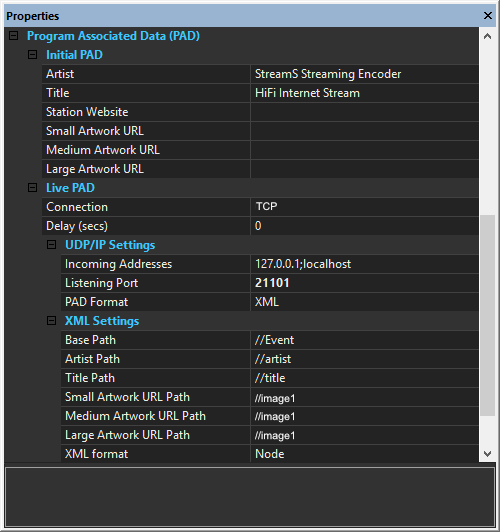
- Connection: TCP
- Incoming Address: The IP Address of your PC running MetaRadio (if MetaRadio is running on the same PC as StreamS, leave this as ‘127.0.0.1;localhost’)
- Listening Port: 21101 (if you have multiple StreamS encoders on the one PC, choose a unique port for each encoder)
- PAD Format: XML
- Base Path: //Event
- Artist Path: //artist
- Title Path: //title
- Small Artwork URL Path: //image1
- XML Format: Node
In this example, we have chosen to accept data on TCP Port ‘21101’. This port must be accessible from your PC running MetaRadio, so ensure you have a firewall or VPN configured appropriately between your PC and StreamS Live Encoder.
If MetaRadio is running on a different PC, enter this PC’s IP Address in the ‘Incoming Addresses’ field.
Sending Now Playing Data to your StreamS Live Encoder
Now we have successfully configured MetaRadio, our Automation System, and our StreamS Live Encoder – we are ready to connect all these systems together.
All configuration in this step is done in the MetaRadio Configuration App. By default, the MetaRadio configuration app is available by going to http://127.0.0.1:9606/
MetaRadio’s configuration interface lets you control all settings within MetaRadio.
- The left contains the menu with various options – including the Input and Output settings.
- The centre of the screen contains information about your system, including license details, and a summary of the inputs and outputs you have setup.

The options you see available will vary depending on the version you have installed, and the license options you have installed.
In the left menu of MetaRadio, click on “Outputs”. Find your station, and click “Add Output”. Now you can select ‘StreamS’ from the list, and configure its settings.
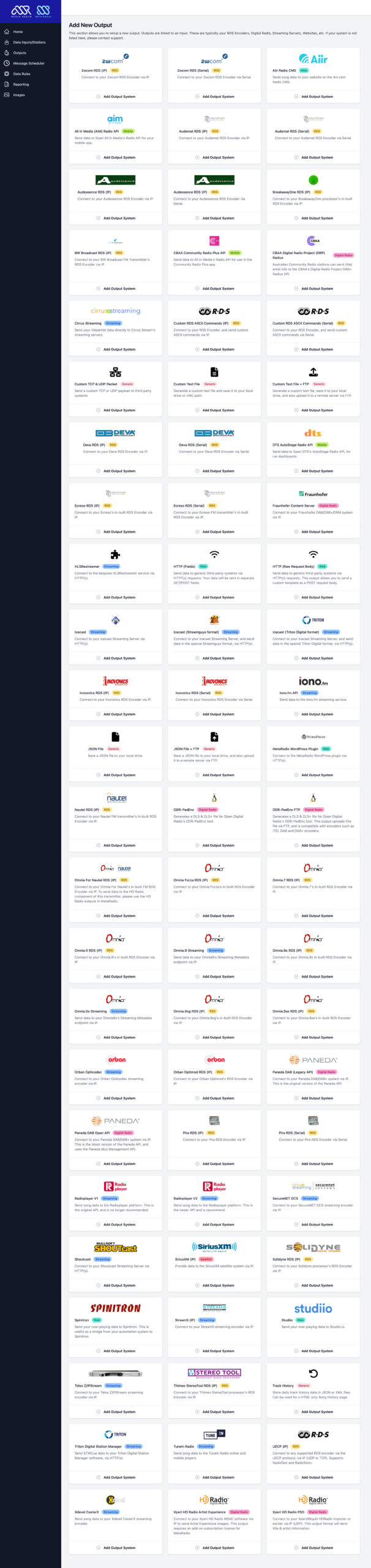
Click “Add Output System” under the ‘StreamS’ heading. You can now configure your data.
Enter the IP Address and Port Number of your StreamS Live Encoder.
You can then configure the messages that rotate. The “Now Playing Text Format” messages rotate whenever a song is playing. The “Default/Fallback Text” messages rotate whenever a song is not playing. The Message Interval determines how long a message displays on the screen.
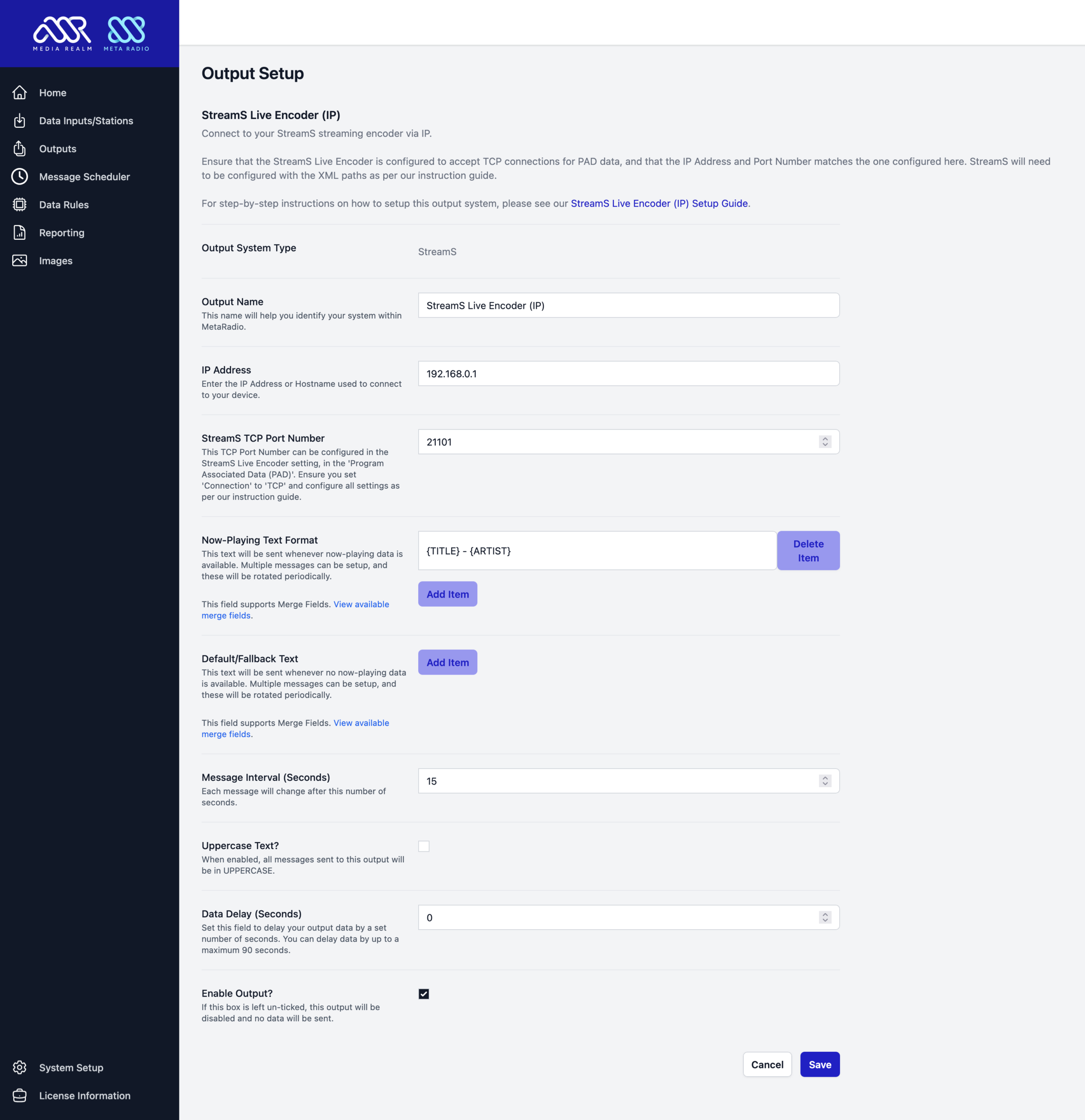
Click Save, and then click “Apply & Restart” up the top to restart MetaRadio.

The black MetaRadio window will now display a status update whenever a new messages is sent to your stream.
If data is not displaying on your radio receiver, check the following:
- Check the black MetaRadio status windows for errors
- Check your network allows connections from your MetaRadio PC to your StreamS Live Encoder
- Check your StreamS Live Encoder is configured correctly.
Support & Next Steps
Thanks for choosing MetaRadio to manage your now playing song data needs. Make sure you explore all the features, such as station scheduling, message scheduling, and all of our advanced output options. Please get in touch with us if you ever need assistance!
If you have any trouble with this process or it’s not working, please send the MetaRadio Support Bundle through to our support team along with a description of your issue. We’re here to help! You’ll find the support bundle file on MetaRadio’s dashboard.