


Data Rules allow you to alter the data as it arrives in MetaRadio from your Automation System, using flexible and powerful custom rules. This means you can endlessly customise your incoming data using ‘If/Then’ style rules before it is processed by MetaRadio and sent to other broadcast systems.
Data Rules were introduced in MetaRadio v2.1.
These are some examples of rules you could create:
- Detect Ads/Sponsors and replace the text
- Detect long-form pre-recorded programs and ignore the track
- Override the incoming duration from your automation system
- Attach specific images to the HD Radio Artist Experience

This guide assume you have already installed MetaRadio, and connected it to your Automation System and Output Systems (e.g. your RDS Encoder).
Creating Your First Data Rule
To get started, open MetaRadio Configuration. This can be found via a shortcut on your desktop, or by going to http://127.0.0.1:9606/.
Go to the “Data Rules” screen in the left menu.
Click “Add Data Rule“. This opens the Data Rule configuration screen.

This screen contains all the options to create your new rule. At the heart of this screen is the Data Rule Builder. This is a logic builder which lets you create complex rules using AND/OR logic.
The other fields can be configured as such:
The Rule Name is your internal name to identify the purpose of the rule. It is only visible by you in the configuration app.
Rule Enabled? allows you to disable a rule if it is not needed, without having to delete it.
Sort Order allows you to change the evaluation order. The lower the number, the earlier the rule will be evaluated. Once one rule matches the conditions, no other rules are evaluated.
Continue Processing Rules? allows you to process more than one rule at a time. By default, Data Rules will process the first matching rule and then stop processing future rules. When you enable this option, MetaRadio will continue evaluating rules until it finds the next matching rule.
Actions
The Actions section allows you to specify what happens once the Rule has been met.
You can choose to Skip Track. This means the track is discarded in MetaRadio before it is sent to any other system.
You can also Edit Fields, such as the Title, Artist, Album, Item Code, and Duration. To edit a field, check the “Enable?” checkbox, and then type your new value into text box below. You can use standard merge fields (such as {TITLE} and {ARTIST}) within these text fields, which means you can remap and combine fields.
You can Override Text Messages for a track on RDS and Digital Radio outputs. This option could be used to display a specific message during a sponsor/advertiser announcement. Simply setup a criteria to match the ad’s cart number (or title/artist), and then override the text with the sponsor’s chosen message.
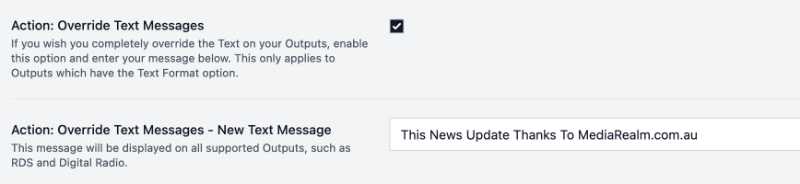
This Override Text Messages action will override all other messages – including the Message Scheduler messages.
You can use the Disable Input and Enable Input actions to stop and start receiving data from specific input systems. While we have supported Input System Scheduling for some time, you might prefer to enable/disable input systems on the fly. You might have your condition set to detect specific title text (e.g. SATELLITE_ON), and then perform the action to turn your Satellite Input on in MetaRadio.

Some automation systems have their title, artist and album text entered in UPPERCASE. This doesn’t look very aesthetically pleasing, particularly on the web. You can use the Convert Title, Artist and Album to Title Case action to undo all-caps data coming in from your automation system.

Some stations prefer all their data to be uppercase. To do this, enable the Convert Title, Artist and Album to Uppercase action.
The Remove all Brackets from Title, Artist and Album action allows you to strip all brackets including (), [], {}, and <>. Some stations put internal information within brackets, and this action allows you to stop this data from being passed onto other systems and seen by listeners.
The Enable/Disable Message Scheduler? action allows you to Enable or Disable the Message Scheduler within MetaRadio for a specific duration and for specific outputs. You may want to do this during ad blocks, so conflicting advertiser messages do not display.
The Custom Image action allows you to override the image sent to the HD Radio Artist Experience. Use this option to attach specific images to advertisers, promos, and programs. You must have the rights to use any image you upload. Music images are not automatically licensed and should be attached via the Image Overrides feature instead.
Other actions will be added to future versions of MetaRadio. Please contact our support team if you have any suggestions for actions you wish to be able to trigger via this feature.
Once you have filled out your settings, press “Save”. You do not need to restart MetaRadio after adding or editing Data Rules – your changes are applied as soon as the next track arrives from any Input system.
You can repeat this process and create as many Data Rules as you like.
FAQs
How does this feature work?
Whenever data is received from an input system, such as your Radio Automation software, it is parsed and turned into a common format. As soon as this happens, MetaRadio evaluates all Data Rules to see if this new track matches a rule. If a rule is matched, it applies the actions before sending the data to Output systems (or discarding the data is you choose the ‘Skip’ action).
Which Input Systems are Supported?
All Inputs in MetaRadio support Data Rules.