


Discover how to send the now-playing data from your ENCO DAD radio automation software, to all sorts of different third party systems – such as your RDS Encoder, Digital Radio, Websites, Streaming Servers, and more.
To achieve this, we’re going to use MetaRadio. MetaRadio is software which acts as a connector for your radio station’s metadata. It enables you to send your now playing data to dozens of different systems, and also unlocks new opportunities for revenue and promotions by inserting commercial and non-commercial messages between your song data. While many automation systems can send data to some of these third party broadcast systems, MetaRadio aims to connect all your systems together and provide advanced features.


MetaRadio takes all the hard work out of connecting your metadata. There’s no need for custom scripting – MetaRadio does everything you need out of the box.
Sending song now-playing information to other broadcast systems has clear advantages for your listeners and also your station. Now Playing data enhances the listener experience by allowing them to discover new tracks, increases a station’s website traffic, and unlocks additional advertising opportunities.
Installing MetaRadio
Before we can connect our Radio Automation System, we need to download and install MetaRadio.
MetaRadio has a free trial available. You’ll need to tell us your name, email, and number of inputs you want to use. MetaRadio is licensed based on inputs:
- If you have one automation system with one channel, you only need one license – no matter how many places you want to send that data.
- If you have two data feeds from your automation system (such as a separate HD2 station), you’ll need two licenses.
- If you want to take data from an automation system, satellite system, or music fingerprinting system at different times of the day, you’ll also need multiple licenses.
When you sign up for the trial, we’ll email you a license key and an installer. Save these to your computer.
Where to install MetaRadio?
The next step is to work out where you want to install MetaRadio. MetaRadio runs on Windows. If you have a small station, you may want to install MetaRadio on the same PC as your ENCO DAD PC – this is the easiest option.
If you have a larger station, you may want to install MetaRadio on a separate Utility PC in your rack room, or even a Virtual Machine. This option is good if you want to connect multiple systems or ENCO DAD servers into the one instance of MetaRadio, or just want to be able to isolate MetaRadio to its own PC.
If you install MetaRadio on a different PC, you’ll need to know a little bit about networking, so you can send data between your automation computer and your MetaRadio computer. ENCO DAD sends now-playing data via UDP or XML Files, so you’ll need to have a network connection between your ENCO DAD Server and MetaRadio PC. Make sure your firewall is configured to allow connections on your chosen port.
Make sure you pick a computer that’s:
- Always turned on and always connected to your network, and
- Has a network connection to your output systems too, such as your FM RDS encoder, HD Radio exciter, DAB or DAB+ headend system, and so on.
Completing the Installation
Once you’ve decided where to install MetaRadio, copy both the installer and license file over to that PC. Log in as an Administrator, and then run the installer.

The first step of the installation wizard is to supply the License File. Once you’ve done this, you can accept all the other default settings, and complete the wizard.
You’ve now installed MetaRadio, and you’re ready to start configuring it!
Running MetaRadio
Open MetaRadio from your desktop shortcut. It will open a black window showing the status, and if this is your first time running MetaRadio, it’ll also open a web browser with the MetaRadio Configuration App. If you don’t see the configuration app, the status window shows you the address you need to go to in your web browser. Any modern web browser, such as Edge, Firefox or Chrome, will work fine.
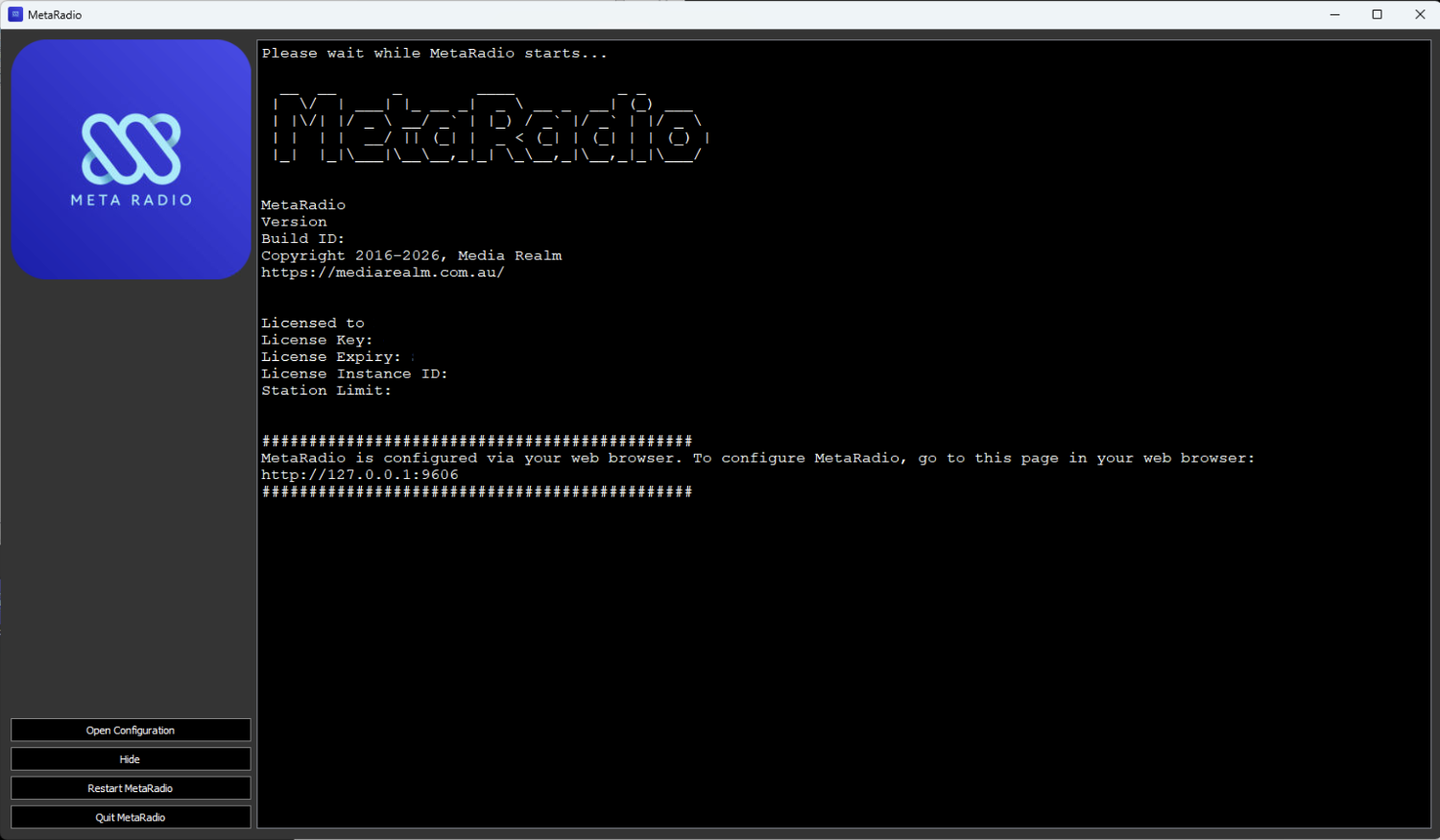
By default, the MetaRadio configuration app is available by going to http://127.0.0.1:9606/
MetaRadio’s configuration interface lets you control all settings within MetaRadio.
- The left contains the menu with various options – including the Input and Output settings.
- The centre of the screen contains information about your system, including license details, and a summary of the inputs and outputs you have setup.
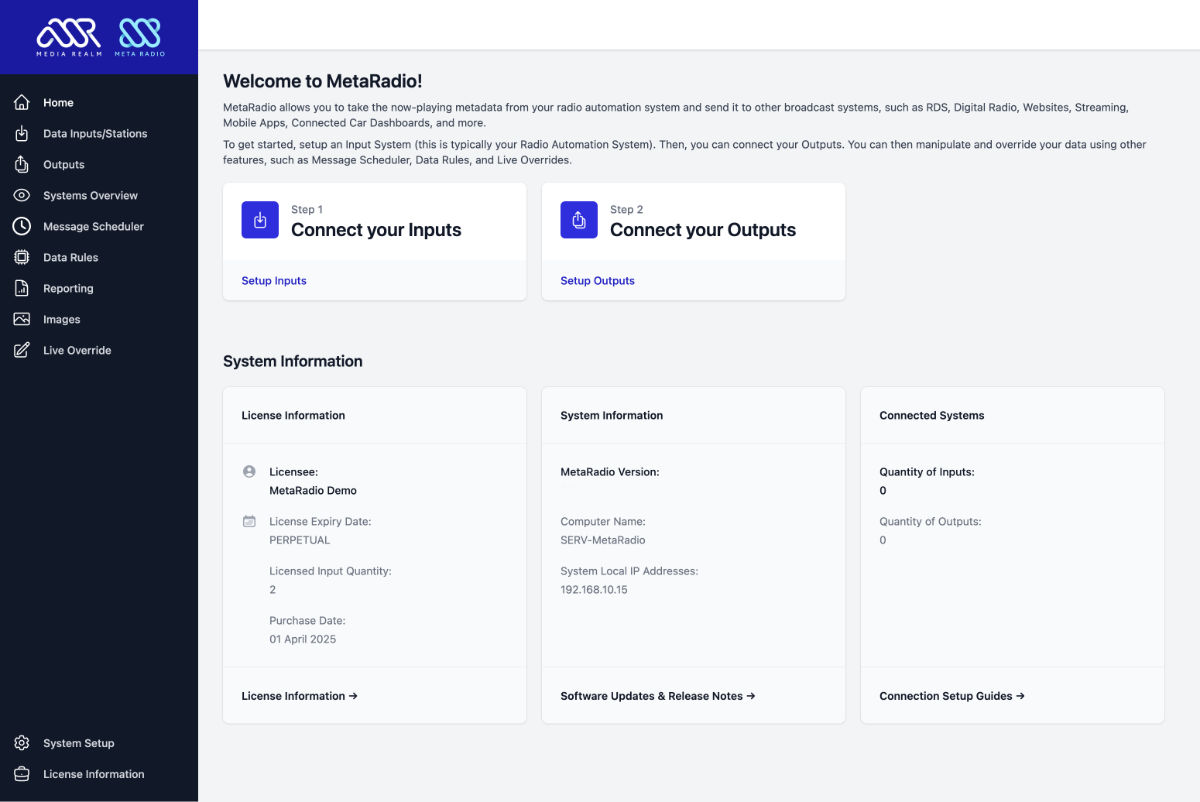
The options you see available will vary depending on the version you have installed, and the license options you have installed.
Configuring MetaRadio
Now that we’ve installed MetaRadio, we can connect it to ENCO DAD.
MetaRadio allows you to send data from an Input (such as ENCO DAD Radio Automation), to any number of outputs. We need to configure the inputs first, and then our outputs second.
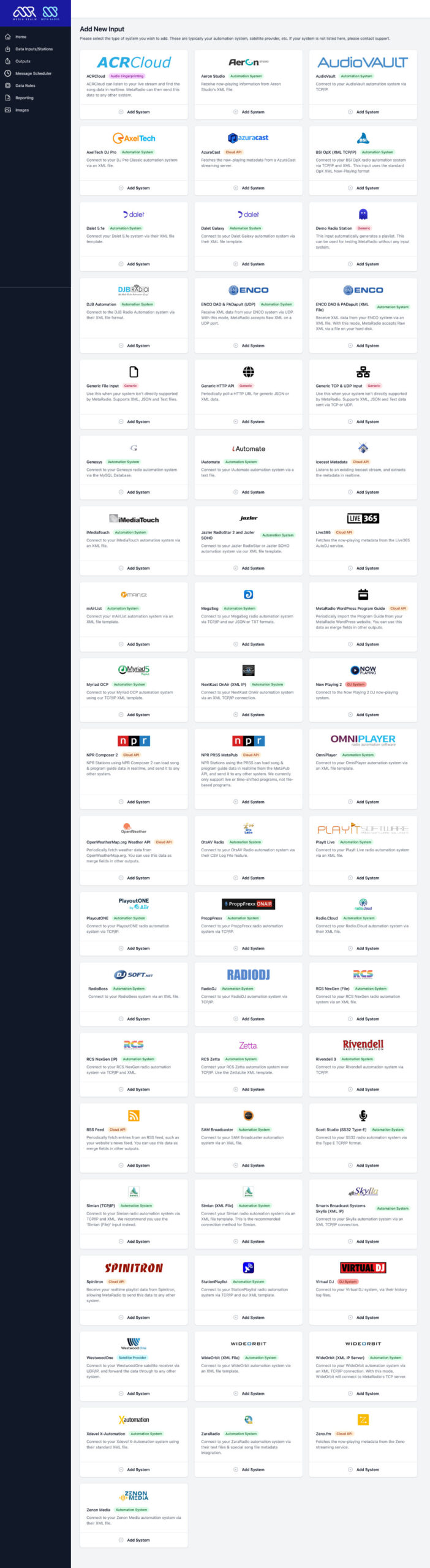
Select the “inputs” menu item on the left, and click “Add New System”. Scroll down through the list of systems and select “ENCO DAD”.
Enter a name for you station, and then enter a port number. This port number is where ENCO DAD will connect.
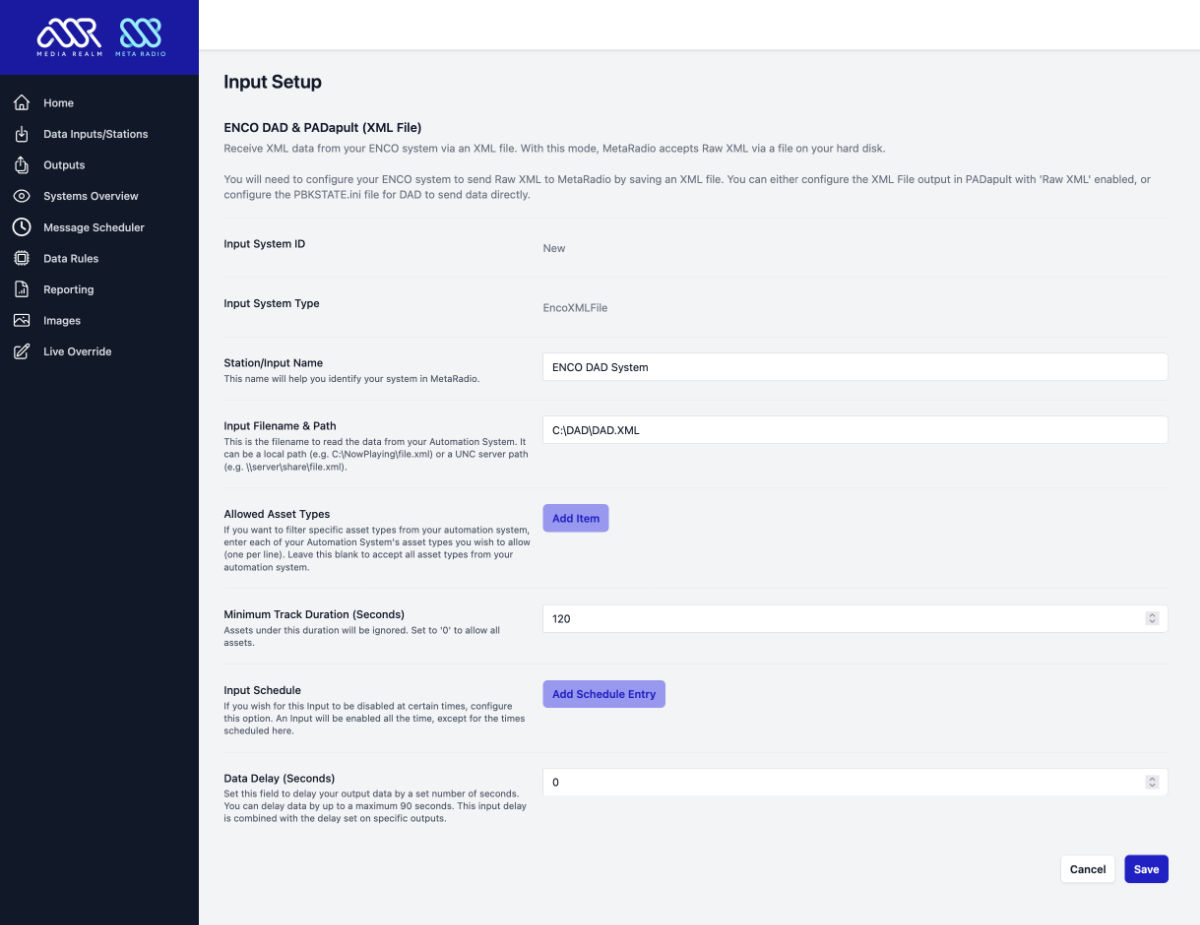
Click Save, and then click “Apply & Restart” up the top to restart MetaRadio.

Configuring ENCO DAD Now Playing XML Data
Now, we need to jump into ENCO DAD and configure it to talk to MetaRadio.
ENCO DAD outputs XML data in a standard format. The DAD Playback State DCL allows you to have DAD generate a XML file based for ‘Now Playing’ information. The XML file can be sent via IP or written to a file.
We need to configure your PBKSTATE.INI and DAD CFI files to output this data for MetaRadio.
To setup ENCO DAD, follow this process:
- Configure PBKSTATE.INI with the triggers and fields. This is an example of the settings in PBKSTATE.INI. Lines with semi-colons at the start are ignored.
[Triggers]
PLAY=
;STOP=
;NEXT=
;LOAD=
;UNLOAD=
;ADD=
;DELETE=
;INSERT=

[Fields]
CUT=
TITLE=
LENGTH=
GROUP=
ARTIST=
ALBUM=
LENGTH=

[Config]
Next Events = 5
Previous Events = 0
Min Length = 5.0

[Groups]
Exclude Groups=
Songs=
Music=
;Sweepers=
;Sounds=- Under SETUP press the CFI and README button. Clicking on the <location>.CFI button will open the CFI file in Notepad allowing you to make changes. In the [PLAYBACK] section, you can define which PBKSTATE.INI file DAD will use. By default, DAD will use PBKSTATE.INI in the \DAD\FILES directory on the data share of the server. e.g.
[PLAYBACK]
STATE_INI_FILE=F:\DAD\FILES\PBKSTATE.INI- Next, you need run a command in DAD to enable XML file logging. By default, the XML file will be created in the local workstation’s C:\DAD directory (e.g. C:\DAD\DAD.XML).
PLAYBACK STATE PBK1 'DAD.XML' - Many users create a Startup Command cut that issues the Playback State DCL upon startup of DAD. To do this, press SETUP then CFI and README. Clicking on the CFI button will open the CFI for editing. Under the [SYSTEM] heading find the following:
STARTUP_COMMAND_CUT=<Cut Number> enter your PBKstate DCL command cut #
For example:
STARTUP_COMMAND_CUT=99700
Note: Startup_Command_Cut and Recover_Command_Cut run automatically when DAD is “ready” - Check that the DAD.XML file exists in the correct place. This file will be updated every time a new track starts playing in DAD.
Testing Your Now Playing Data
Go back to MetaRadio. If your configuration is successful, the black MetaRadio window will say “Now Playing” with some track details every time a new track plays in ENCO DAD.
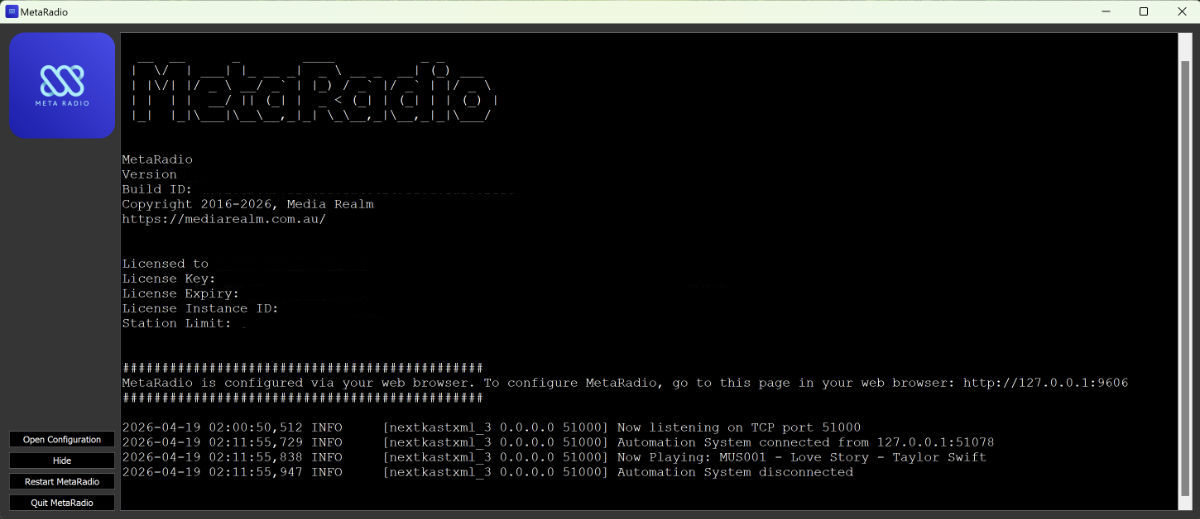
This means your configuration is done, and you can now move onto configuring your Outputs. An Output in MetaRadio is any destination system you want to send data to – a RDS Encoder, HD Radio System, Website, Digital Radio, Streaming Server, Mobile App, etc.
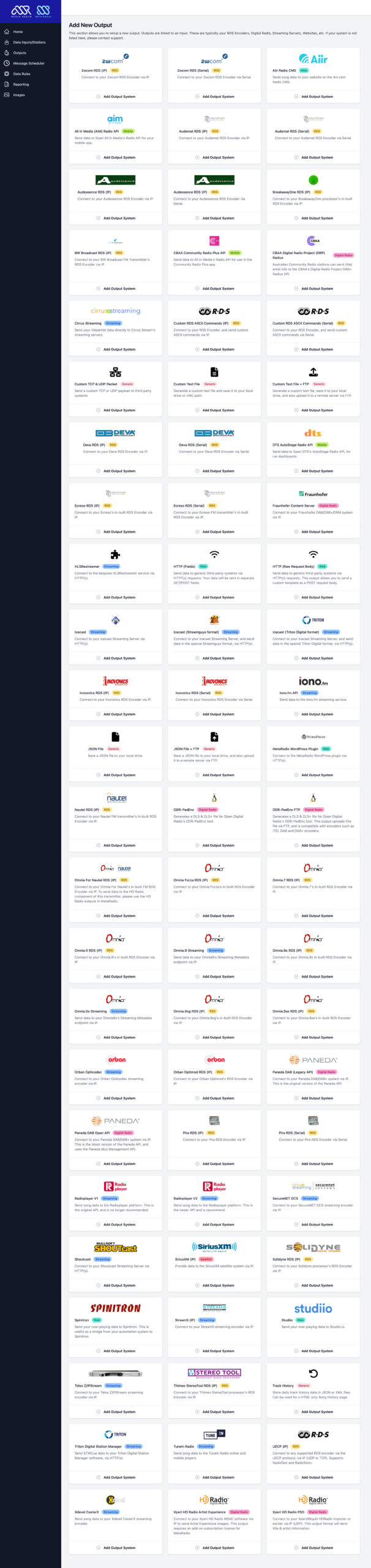
In the left menu of MetaRadio, click on “Outputs”. Find your station, and click “Add Output”. Now you can select your output system from the list, and configure its settings. Our website has instructions on configuring all the most popular systems, or contact our support team if you need assistance.
Support & Next Steps
Thanks for choosing MetaRadio to manage your now playing song data needs. Make sure you explore all the features, such as Data Rules, input system scheduling, message scheduling, and all of our advanced output options. Please get in touch with us if you ever need assistance!
If you have any trouble with this process or it’s not working, please send the MetaRadio log files through to our support team. We’re here to help! You’ll find the support bundle file in MetaRadio’s dashboard.
FAQs
Can I have multiple ENCO DAD Stations connect to one MetaRadio instance?
Yes. You can connect unlimited ENCO DAD stations to the one MetaRadio instance on one PC. Here’s some things to keep in mind:
- In ENCO DAD, create one Now Playing output per ENCO DAD Station. Each Now Playing output will need to have a unique port number, and this port number needs to match what you configure in your MetaRadio input.
- You will need one MetaRadio license per ENCO DAD station. You can buy multiple licenses online. If you have purchased licenses separately and need them combined (so they can run one one PC), please email support your purchase receipts and we will make this change for you.
Can I exclude certain asset types from sending now-playing data?
Yes. You can exclude certain asset types (such as spots, sweepers, IDs, voice tracks, etc.) from being sent. In MetaRadio you can use the “Allowed Asset Types” setting to restrict your now-playing data to certain asset types. These asset types are defined by DAD. Or you can use the “Minimum Track Duration (Seconds)” setting to ignore all tracks under a certain length. You could also use Data Rules to ignore tracks based on specific criteria.

Can I disable ENCO DAD Now Playing data during certain times?
Yes. This is a common request for stations that take satellite programming during certain hours, or for stations which use Audio Fingerprinting to detect tracks not played via your automation system. MetaRadio allows you to create a schedule for your automation system input. In your Input Settings, look for the “Input Settings” section. Any day/time entries specified here will disable your ENCO DAD data.

What does “Zero items are currently playing” mean?
When a track is sent from ENCO DAD to MetaRadio, it checks a number of conditions before accepting the data and passing it onto your output systems. These settings include the configurable “Allowed Asset Types” and “Minimum Track Duration” settings, as well as your Data Rules. If these conditions are not met, MetaRadio will say “Zero items are currently playing”.
MetaRadio does not see my now-playing data and does not show any errors
The most common reason for this is MetaRadio is not receiving a TCP connection from ENCO DAD. Please check your port numbers match, and there are no firewalls blocking your connection.