


Do you want to send Now Playing Song Data and Images to the your HD Radio Artist Experience system, from your Radio Automation System? MetaRadio makes this possible. This article explains the setup of MetaRadio and HD Radio Artist Experience system, allowing the current song title and artist, along with images such as station logo, album art, program images, sponsor/advertiser images, and more to be displayed on HD Radio receivers.
Sending song now-playing information to your HD Radio system system has clear advantages for your listeners and also your station. Now Playing data enhances the listener experience by allowing them to discover new tracks, and unlocks additional advertising opportunities by displaying promotional messages on your screen.


Understanding the HD Radio Artist Experience
What is HD Radio?
HD Radio is a digital radio format used primarily in the United States, Canada, Mexico, and the Philippines. It allows AM and FM stations to transmit additional digital audio channels within their existing AM & FM frequency. A listener usually tunes to your frequency, and then selects the optional ‘HD2’, ‘HD3’, etc. audio services.
HD Radio is proprietary and licensed by Xperi.
What is the HD Radio Artist Experience?
HD Radio can send audio, text, and images.
- Text is often your ‘Now Playing’ title, artist and album information. It could also be custom messages, such as your station name, program guide information, and sponsored/commercial messages.
- Images within the ‘Artist Experience’ can actually be many different types of images. They don’t need to be just Artist images!
- Every station needs to send a Station Logo. Station Logos are referred to as ‘asynchronous’ because they do not need to change or sync with the audio.
- Every other image is considered ‘synchronous’, because it syncs with specific text and audio. You may send Album Art, Program Images, and Commercial Images (sponsor/advertiser logos).
- You need to have permission to use every image you transmit via HD Radio. MetaRadio includes licensed music cover art for HD Radio.
How much does it cost to use the Artist Experience?
All images sent to the HD Radio Artist Experience need to be licensed. Media Realm has an agreement with Music Story to provide fully licensed music album cover art images. For this reason, if you want to send any dynamic images to HD Radio, you need to subscribe to the MetaRadio HD Radio Artist Experience add-on. Pricing is on our purchase page.
If I just want to send text to HD Radio, do I need the Artist Experience?
No. If you do not want to send any Images to HD Radio, you can use the HD Radio PSD output in MetaRadio. This output does not attract any additional fees for use.
If you want to send your station logo, you can configure this in MSAC.
Any dynamic images require the Artist Experience subscription for MetaRadio.
What software do I need to enable the Artist Experience?
There are three main pieces of software a radio station needs to enable the Artist Experience on their station:
- Radio Automation System – this system knows what audio is playing on-air, and provides this data to the other software.
- MetaRadio – This is middleware software to connect your automation system to the Artist Experience. It looks up album art from an online database and also lets you override data (such as attaching advertiser images). As well as enabling the Artist Experience, it also allows you to send your metadata to connected dashboards, RDS, websites, streaming, and more.
- MSAC (Multiport, Synchronous-Asynchronous Client) – This is Xperi software, but distributed by your transmitter manufacturer. It provides a technical interface between MetaRadio and your Importer/Exporter hardware.
What is MetaRadio?
MetaRadio is software which acts as a connector for your radio station’s metadata. It enables you to send your now playing data to dozens of different types of systems (including HD Radio), and also unlocks new opportunities for revenue and promotions by inserting commercial and non-commercial messages between your song data. MetaRadio takes all the hard work out of connecting your metadata, and provides endless ways to customise and manipulate your data.
Getting Song Data From your Radio Automation System
Before you can send your song metadata to your HD Radio Artist Experience system, you must first install MetaRadio and connect it to your radio automation system.
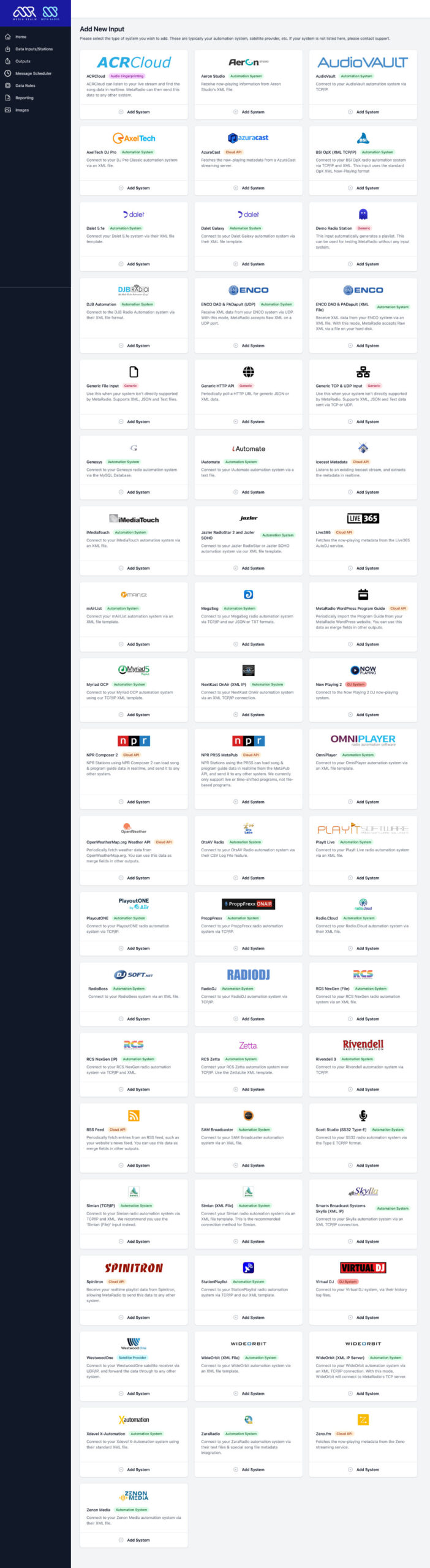
MetaRadio has over 30 different input system – including all the major Radio Automation System vendors. If you don’t have reliable metadata available in your automation system, you may like to consider using radio stream fingerprinting software with MetaRadio.
There is a free trial available so you can test the entire system before committing to purchase.
Prerequisites & Preparing your HD Radio Artist Experience system
You also need to prepare to your HD Radio Artist Experience system and ensure you have all the prerequisites. Your HD Radio Artist Experience system should be on the same network as your MetaRadio PC, so the two systems can communicate.
Ensure you meet the following requirements:
- MetaRadio setup and receiving data from your input system (Automation System).
- MetaRadio HD Radio Artist Experience add-on license.
- This output is a paid add-on due to the licensing fees, such as music cover artwork. Once you have MetaRadio setup, you can sign up for the HD Radio Artist Experience add-on via this page.
- HD Radio Importer/Exporter setup with MSAC.
- Gen4 systems are usually pre-configured. Gen2 & Gen3 systems need additional configuration. MSAC 5.3.4 or higher is recommended.
- Your Transmitter Manufacturer can provide support for setting up MSAC and your Importer. If you cannot access their support, we also have some configuration advice at the bottom of this article.
- Network connectivity between your MetaRadio PC and your MSAC server (TCP Port 7777).
- MetaRadio requires internet access for licensing and music cover art search.
- MetaRadio v2.5 or later is needed. Please ensure you always keep up to date with the latest version.
You also need to find the following configuration from MSAC:
- IP Address & Port (default port 7777)
- Data Service Name – Album Art
- The Data Service Name configured in MSAC and your Importer. E.g. AAHD1, AAHD2, etc.
- Data Service Name – Station Logo
- The Data Service Name configured in MSAC and your Importer. E.g. SLHD1, SLHD2, etc.
- Program ID
- The Program ID as set in mpClient.xml. Typically, HD1 is Program ID 0, HD2 is Program ID 1, etc.
- Audio Program
- Your Audio Program name (e.g. MPS, SPS1, SPS2, SPS3). This is used for PSD data.
- PSD IP Address
- The IP Address to connect to your Importer/Exporter for PSD data.
- PSD UDP Port Number
- By default, your HD Radio HD1 Service accepts now-playing data on UDP Port 11000. Your HD2 service is typically on UDP Port 10010. Your HD3 service is typically on UDP Port 10011.
- Remote Directory Path
- By default, this is ../data/remote/. On some systems it may’ve been changed, so if this is the case you need to enter the correct path into MetaRadio.
Once you have found all the prerequisite details, you should also disable the MSAC station logo sender app, as well as any other systems communicating with MSAC. MetaRadio will send the station logo instead.
If you are running MSAC version prior to 5.4.4, please set ‘Image Overwrite’ in MSAC to true.
Sending Now Playing Data to your HD Radio Artist Experience system
Now we have successfully configured MetaRadio, our Automation System, and our HD Radio Artist Experience system – we are ready to connect all these systems together.
All configuration in this step is done in the MetaRadio Configuration App. By default, the MetaRadio configuration app is available by going to http://127.0.0.1:9606/
MetaRadio’s configuration interface lets you control all settings within MetaRadio.
- The left contains the menu with various options – including the Input and Output settings.
- The centre of the screen contains information about your system, including license details, and a summary of the inputs and outputs you have setup.

The options you see available will vary depending on the version you have installed, and the license options you have installed.
In the left menu of MetaRadio, click on “Images”. Upload your Station Logo to the ‘Images’ section. Images will be resized to 200×200 when sending to HD Radio, but any size logo can be uploaded to MetaRadio. You do not need to run your image through the HD Radio Image Verifier first.
In the left menu of MetaRadio, click on “Outputs” and find your station.
If you have already configured MetaRadio to send text to your HD Radio system (PSD), please disable the PSD output in MetaRadio. The Artist Experience output in MetaRadio sends both PSD and LOT to MSAC. If you use a metadata system from another provider, you will need to disable this too.
Under your station, click “Add Output” and select HD Radio Artist Experience system from the list.
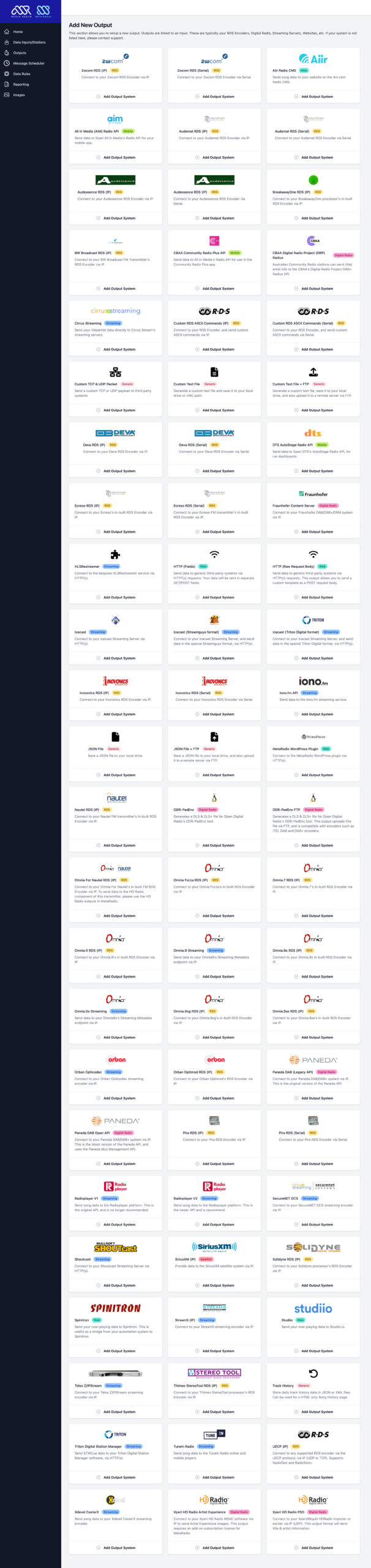
On this screen, enter the IP Address and all other details of of your HD Radio Artist Experience system.
Select the Station Logo Image you uploaded from Step 3.a.
Ensure your license key is entered correctly. This output will not run without a valid license key.
You should also configure the messages that rotate. The “Now Playing Text Format” messages rotate whenever a song is playing. The “Default/Fallback Text” messages rotate whenever a song is not playing. The Message Interval determines how long a message displays on the screen.
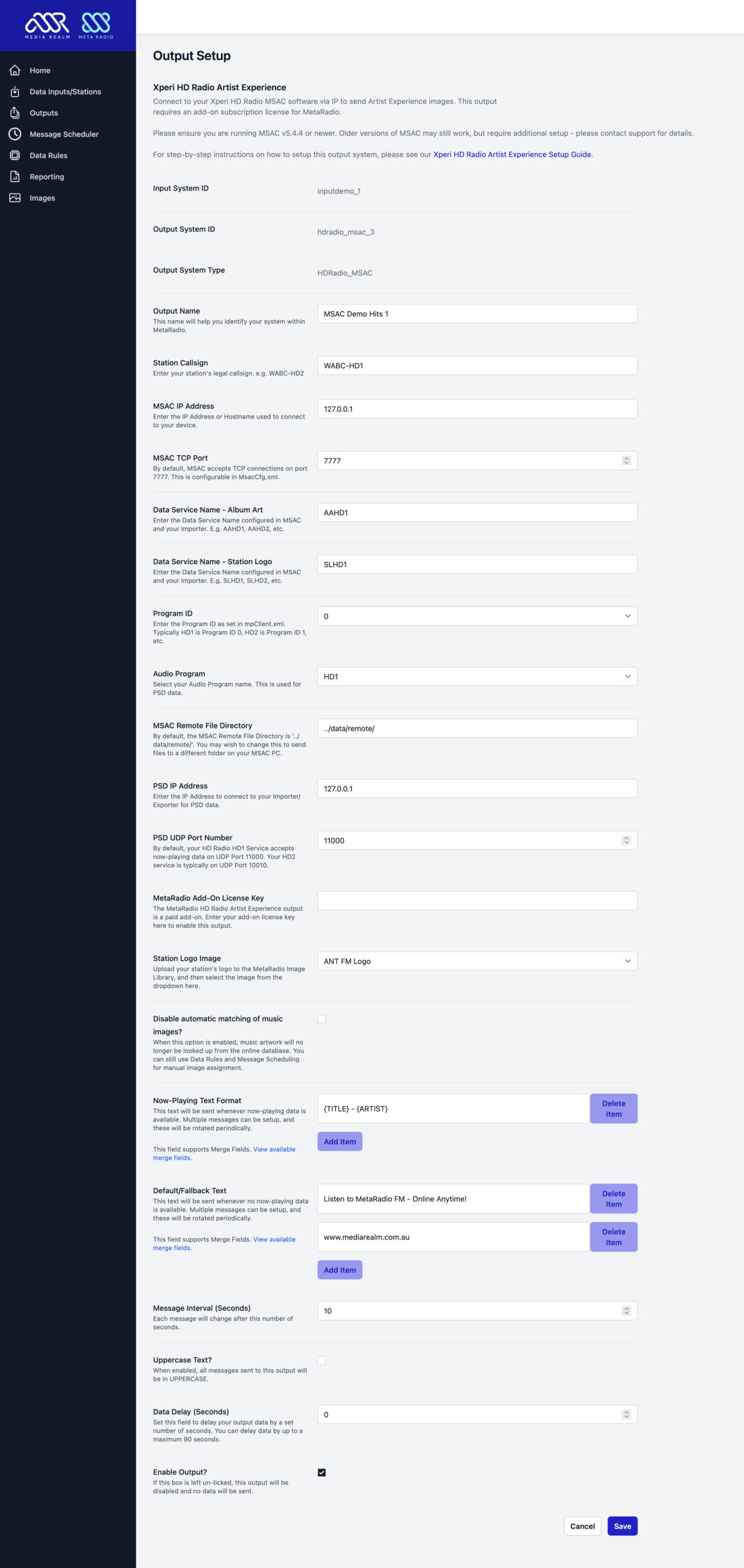
Click Save, and then click “Apply & Restart” up the top to restart MetaRadio.

The black MetaRadio window will now display a status update whenever a new messages is sent to your HD Radio system.
Station Logo image will be sent immediately and then again hourly. This image should be displayed on radio receivers whenever another image isn’t available. This image is usually stored into the non-volatile memory of the HD Radio receiver.
Album Art will be sent whenever an album art image is found via our online database. MetaRadio supports both sync pre-send and sync send events, but not all input systems provide us with the data needed to enable pre-sends. At the time of writing, WideOrbit, Zetta, PlayoutOne and our generic input formats all support pre-send images.
If data is not displaying on your radio receiver, check the following:
- Check the black MetaRadio status windows for errors.
- Check your network allows connections from your MetaRadio PC to your HD Radio Artist Experience system.
- Check your HD Radio Artist Experience system is configured correctly.
Support & Next Steps
Thanks for choosing MetaRadio to manage your now playing song data needs. Make sure you explore all the features, such as station scheduling, message scheduling, and all of our advanced output options. Please get in touch with us if you ever need assistance!
If you have any trouble with this process or it’s not working, please send the MetaRadio log files through to our support team. We’re here to help! You’ll find the support bundle file in MetaRadio’s dashboard.
Customising HD Radio Artist Experience Data
By default, MetaRadio will send your song now-playing data to HD Radio. However, you can customise this with your own text and images for advertisers/sponsors, promotions, and program information.
To customise the text and image when a specific track place, use Data Rules. These flexible rules allow you to match a specific audio file, and then display specific text and imagery.
If you want to schedule text and images to display over the top of other audio, using specific scheduling rules, use the Message Scheduler. This allows you to schedule your text/image for specific time period, with flexible rotation rules.
Advanced Configuration Guidance
This section provides recommended configuration for MSAC and the Importer. These guidelines are designed to get you up and running but are strictly unofficial guidelines. Your Transmitter Manufacturer should be able to provide you with support and setup guidance for your entire HD Radio system. Media Realm cannot provide you with in-depth support to configure your HD Radio system.
Gen4 systems are typically pre-configured correctly, but this is manufacturer-dependent. Gen3 and earlier systems typically need additional configuration.
In this section, we are using the Gen4 Service Naming convention (AAHD1, SLHD2, etc.). This naming convention can be used on Gen3 and earlier systems as well, but it likely won’t be configured by default in this way. You must ensure your Service Names match between MSAC, Importer, and MetaRadio.
Before making any changes, please ensure all configuration is backed up.
MSAC Configuration
MSAC is a Java app that can either be run on Windows or Linux (often embedded on your transmitter’s PC). Gen4 systems allow you to run MSAC via the web control panel. On older system, MSAC is configured via multiple XML files. We go through each XML file below. Once you have made all your changes, please restart MSAC.
cfg/jmsacCfg.properties
This file contains many app-wide configuration parameters. This file may not exist on more recent versions of MSAC. Some of the key settings we need are shown here:
<entry key="REMOTE FILE DIRECTORY">..\\data\\remote\\</entry>
<entry key="Exporter IP Address">192.168.1.60</entry>
<entry key="TCP Listen Port">7777</entry>
<entry key="Importer IP Address:Port">127.0.0.1:8020</entry>
<entry key="Start MSAC with Station Logo Client">false</entry>
<entry key="TCP or UDP">TCP</entry>
<entry key="File Overwrite">true</entry>
The Exporter IP Address should be set to match your Exporter. This is so the PAD text data can be sent to the Exporter.
The Importer IP Address and Port should match the IP Address of your Importer. If you run MSAC on the same PC as your Importer software, you can use the IP Address ‘127.0.0.1’. Port 8020 is the Importer default port.
cfg/MsacCfg.xml
This file contains many app-wide configuration parameters. This file may only exist on more recent versions of MSAC. Some of the key settings we need are shown here:
<?xml version="1.0" encoding="UTF-8" standalone="yes"?>
<MsacApi>
    <MsacUserConfiguration version="5.1.1">
        <Name>MSAC 1 Client - Artist Experience</Name>
        <Connections>
            <Importer ipAddr="127.0.0.1" port="8020" importerTcpConnectKeepAlive="true" secondsToRetryImporterConnect="60"/>
            <Client clientConnectionType="TCP" tcpListenPort="7777" tcpListenPortTimeout="5" udpInputPort="15000" udpOutputPort="15001" />
            <ExtControlAndStatus externalPort="14001" sleepTimeMultiplier="20" sleepTimeInMsec="500"/>
        </Connections>
        <Login clientUserName="aahd1" clientPassword="aahd1" clientAssociationsFile="../cfg/mpClient.xml/"/>
        <ClientOperation lastLotId="100" autoStart="false" autoRestart="false"/>
        <RemoteFileParams remoteFileDir="../data/remote/" fileOverwriteEnable="true" remoteExpirationDays="5"/>
        <ArtistExperParams>
            <AsyncSendParams autoSendStLogo="false" asyncSchedComplTimeReductPercHd1="0" asyncSchedComplTimeReductPercHd2="0" asyncSchedComplTimeReductPercHd3="0" asyncSchedComplTimeReductPercHd4="0" asyncSchedComplTimeReductPercHd5="0" asyncSchedComplTimeReductPercHd6="0" asyncSchedComplTimeReductPercHd7="0" asyncSchedComplTimeReductPercHd8="0" stLogoFileHd1="" stLogoFileHd2="" stLogoFileHd3="" stLogoFileHd4="" stLogoFileHd5="" stLogoFileHd6="" stLogoFileHd7="" stLogoFileHd8=""/>
            <SyncPreSendParams fractionOfSongDuration="0.6" numRepeatCalcDutyCycle="0.4" maxNumRepeats="20"/>
        </ArtistExperParams>
    </MsacUserConfiguration>
</MsacApi>
cfg/mpClientCgf.properties
This file contains credentials that need to match the main service username and password in your Importer.
<entry key="username">aahd1</entry>
<entry key="password">aahd1</entry>
<entry key="filename">../cfg/mpClient.xml</entry>
cfg/mpClient.xml
Your service names should be AAHD1 to AAHD4 (Album Art), and SLHD1 to SLHD4 (Station Logo). The Schedule Policy for Album Art services should be “FIFO” (First In, First Out). The Schedule Policy for Station Logo services should be “RR” (Round Robin).
<?xml version="1.0" ?>
<HDRadio-Envelope>
<MSAC-CFG>
<Associate>
<Map dataServiceName="AAHD1" audioServiceName="MPS" programId="0" lotEnable="TRUE" schedulePolicy="FIFO" schedulePriority="LOW" scheduleDynamicRate="ON" scheduleRate="-1" scheduleRatePercent="-1" scheduleCompleteTime="-1"></Map>

<Map dataServiceName="AAHD2" audioServiceName="SPS1" programId="1" lotEnable="TRUE" schedulePolicy="FIFO" schedulePriority="LOW" scheduleDynamicRate="ON" scheduleRate="-1" scheduleRatePercent="-1" scheduleCompleteTime="-1"></Map>

<Map dataServiceName="AAHD3" audioServiceName="SPS2" programId="2" lotEnable="TRUE" schedulePolicy="FIFO" schedulePriority="LOW" scheduleDynamicRate="ON" scheduleRate="-1" scheduleRatePercent="-1" scheduleCompleteTime="-1"></Map>

<Map dataServiceName="AAHD4" audioServiceName="SPS3" programId="3" lotEnable="TRUE" schedulePolicy="FIFO" schedulePriority="LOW" scheduleDynamicRate="ON" scheduleRate="-1" scheduleRatePercent="-1" scheduleCompleteTime="-1"></Map>

<Map dataServiceName="SLHD1" audioServiceName="MPS" programId="0" lotEnable="TRUE" schedulePolicy="RR" schedulePriority="LOW" scheduleDynamicRate="ON" scheduleRate="-1" scheduleRatePercent="-1" scheduleCompleteTime="-1"></Map>

<Map dataServiceName="SLHD2" audioServiceName="SPS1" programId="1" lotEnable="TRUE" schedulePolicy="RR" schedulePriority="LOW" scheduleDynamicRate="ON" scheduleRate="-1" scheduleRatePercent="-1" scheduleCompleteTime="-1"></Map>

<Map dataServiceName="SLHD3" audioServiceName="SPS2" programId="2" lotEnable="TRUE" schedulePolicy="RR" schedulePriority="LOW" scheduleDynamicRate="ON" scheduleRate="-1" scheduleRatePercent="-1" scheduleCompleteTime="-1"></Map>

<Map dataServiceName="SLHD4" audioServiceName="SPS3" programId="3" lotEnable="TRUE" schedulePolicy="RR" schedulePriority="LOW" scheduleDynamicRate="ON" scheduleRate="-1" scheduleRatePercent="-1" scheduleCompleteTime="-1"></Map>
</Associate>
</MSAC-CFG>
</HDRadio-Envelope>
cfg/mpClient2.xml
This file contains additional configuration for Station Logo (Round Robin) services. The Service Names should be called SLHD1 to SLHD4. scheduleCompleteTime is the number of seconds it will take to send Station Logos, which is very long, but by setting scheduleDynamicRate to “ON”, it means this can be completed faster when bandwidth is available.
<HDRadio-Envelope>
   <MSAC-CFG>
      <Associate>
            <Map dataServiceName    ="SLHD1"
                 audioServiceName     ="MPS"
                 schedulePolicy       ="RR"
                 scheduleDynamicRate  ="ON"
                 scheduleCompleteTime ="900"
                 schedulePriority     ="LOW"/>

            <Map dataServiceName    ="SLHD2"
                 audioServiceName     ="SPS1"
                 schedulePolicy       ="RR"
                 scheduleDynamicRate  ="ON"
                 scheduleCompleteTime ="900"
                 schedulePriority     ="LOW"/>

            <Map dataServiceName    ="SLHD3"
                 audioServiceName     ="SPS2"
                 schedulePolicy       ="RR"
                 scheduleDynamicRate  ="ON"
                 scheduleCompleteTime ="900"
                 schedulePriority     ="LOW"/>

            <Map dataServiceName    ="SLHD4"
                 audioServiceName     ="SPS3"
                 schedulePolicy       ="RR"
                 scheduleDynamicRate  ="ON"
                 scheduleCompleteTime ="900"
                 schedulePriority     ="LOW"/>
        </Associate>
    </MSAC-CFG>
</HDRadio-Envelope>
cfg/mpClient4.xml
This file also contains the list of services, and details must match cfg/mpClient.xml. Ensure the Album Art Service Names are called AAHD1 to AAHD4 and are set as “FIFO”. The Station Logo Service Names should be called SLHD1 to SLHD4 and must be set to “RR”.
<HDRadio-Envelope>
   <MSAC-CFG>
      <Associate>
            <Map
                dataServiceName      ="AAHD1"
                audioServiceName     ="MPS"
                programId            ="0"
                schedulePolicy       ="FIFO"
                scheduleDynamicRate  ="ON"
                schedulePriority     ="LOW"
            />

            <Map
                dataServiceName      ="AAHD2"
                audioServiceName     ="SPS1"
                programId            ="1"
                schedulePolicy       ="FIFO"
                scheduleDynamicRate  ="ON"
                schedulePriority     ="LOW"
            />

            <Map
                dataServiceName      ="AAHD3"
                audioServiceName     ="SPS2"
                programId            ="2"
                schedulePolicy       ="FIFO"
                scheduleDynamicRate  ="ON"
                schedulePriority     ="LOW"
            />

            <Map
                dataServiceName      ="AAHD4"
                audioServiceName     ="SPS3"
                programId            ="3"
                schedulePolicy       ="FIFO"
                scheduleDynamicRate  ="ON"
                schedulePriority     ="LOW"
            />

            <Map
                dataServiceName      ="SLHD1"
                audioServiceName     ="MPS"
                programId            ="0"
                schedulePolicy       ="RR"
                scheduleDynamicRate  ="OFF"
                schedulePriority     ="LOW"
                scheduleCompleteTime ="900"
            />

            <Map
                dataServiceName      ="SLHD2"
                audioServiceName     ="SPS1"
                programId            ="1"
                schedulePolicy       ="RR"
                scheduleDynamicRate  ="OFF"
                schedulePriority     ="LOW"
                scheduleCompleteTime ="900"
            />

            <Map
                dataServiceName      ="SLHD3"
                audioServiceName     ="SPS2"
                programId            ="2"
                schedulePolicy       ="RR"
                scheduleDynamicRate  ="OFF"
                schedulePriority     ="LOW"
                scheduleCompleteTime ="900"
            />

            <Map
                dataServiceName      ="SLHD4"
                audioServiceName     ="SPS3"
                programId            ="3"
                schedulePolicy       ="RR"
                scheduleDynamicRate  ="OFF"
                schedulePriority     ="LOW"
                scheduleCompleteTime ="900"
            />

        </Associate>
    </MSAC-CFG>
</HDRadio-Envelope>
Importer Configuration
The Importer is configured via a Web Interface but can be backed up to an XML file so you can see all your configuration in one place. This section shows the XML notation for each configuration section, but you will probably find it easier to enter these details into the web interface.
Please ensure you restart the Importer software after you have made all these changes.
Services
Your Services will contain your Audio Services (MPS, SPS1, SPS2, SPS3). It also contains the data services. This section shows the default configuration for the data services:
<Service name="AAHD1" provider_name="Self" type="data" login="aahd1" password="aahd1" mime="application/x-hdradio-std/image/image-sync" genre="265" ca_level_name="not-used" service_token="SELFR5XVTWYQ4H1N7K01T16RAIME999HDERM" />

<Service name="SLHD1" provider_name="Self" type="data" login="slhd1" password="slhd1" mime="application/x-hdradio-std/image/station-logo" genre="265" ca_level_name="not-used" service_token="SELFR5XVTWYL4H1N3R9UP9ZLAIME999HJDRM" />

<Service name="AAHD2" provider_name="Self" type="data" login="aahd2" password="aahd2" mime="application/x-hdradio-std/image/image-sync" genre="265" ca_level_name="not-used" service_token="SELFR5XVTWYQ4H1N4OF3T16RAIME999HEERM" />

<Service name="SLHD2" provider_name="Self" type="data" login="slhd2" password="slhd2" mime="application/x-hdradio-std/image/station-logo" genre="265" ca_level_name="not-used" token="SELFR5XVTWYL4H1N8V6WP9ZLAIME999HKDRM" />

<Service name="AAHD3" provider_name="Self" type="data" login="aahd3" password="aahd3" mime="application/x-hdradio-std/image/image-sync" genre="265" ca_level_name="not-used" service_token="SELFR5XVTWYQ4H1NXSEYT16RAIME999HBERM" />

<Service name="SLHD3" provider_name="Self" type="data" login="slhd3" password="slhd3" mime="application/x-hdradio-std/image/station-logo" genre="265" ca_level_name="not-used" service_token="SELFR5XVTWYL4H1NYIAVP9ZLAIME999HPDRM" />

<Service name="AAHD4" provider_name="Self" type="data" login="aahd4" password="aahd4" mime="application/x-hdradio-std/image/image-sync" genre="265" ca_level_name="not-used" service_token="SELFR5XVTWYQ4H1NUW1ST16RAIME999HCERM" />

<Service name="SLHD4" provider_name="Self" type="data" login="slhd4" password="slhd4" mime="application/x-hdradio-std/image/station-logo" genre="265" ca_level_name="not-used" service_token="SELFR5XVTWYL4H1NTM5TP9ZLAIME999HQDRM" />
Service Configurations
The Importer can contain multiple Service Configurations, but only one is active at a time. Find the Active Service Configuration, and ensure the data services are configured as per this example:
<Service name="AAHD1" type="data" port_id="1031" qos_name="Standard-Packet">
    <Stream id="0" size="1306" channel="0" mainServiceName="AAHD1"
        serviceConfigType="main" />
</Service>
<Service name="AAHD2" type="data" port_id="1032" qos_name="Standard-Packet">
    <Stream id="0" size="0" channel="0" mainServiceName="AAHD1"
        serviceConfigType="multiport" />
</Service>
<Service name="AAHD3" type="data" port_id="1033" qos_name="Standard-Packet">
    <Stream id="0" size="0" channel="0" mainServiceName="AAHD1"
        serviceConfigType="multiport" />
</Service>
<Service name="AAHD4" type="data" port_id="1034" qos_name="Standard-Packet">
    <Stream id="0" size="0" channel="0" mainServiceName="AAHD1"
        serviceConfigType="multiport" />
</Service>
<Service name="SLHD1" type="data" port_id="1041" qos_name="Standard-Packet">
    <Stream id="0" size="0" channel="0" mainServiceName="AAHD1"
        serviceConfigType="multiport" />
</Service>
<Service name="SLHD2" type="data" port_id="1042" qos_name="Standard-Packet">
    <Stream id="0" size="0" channel="0" mainServiceName="AAHD1"
        serviceConfigType="multiport" />
</Service>
<Service name="SLHD3" type="data" port_id="1043" qos_name="Standard-Packet">
    <Stream id="0" size="0" channel="0" mainServiceName="AAHD1"
        serviceConfigType="multiport" />
</Service>
<Service name="SLHD4" type="data" port_id="1044" qos_name="Standard-Packet">
    <Stream id="0" size="0" channel="0" mainServiceName="AAHD1"
        serviceConfigType="multiport" />
</Service>