

I’m thrilled to announce MetaRadio v2.5 is now available. This release is the first official version with HD Radio Artist Experience integration. It also contains a number of other enhancements, improvements, and bug fixes.
Streamline your metadata with MetaRadio – the ultimate tool for managing your radio station’s Now Playing song metadata effortlessly. Send your metadata anywhere – RDS, HD Radio, Websites, Streaming, Apps, and more! MetaRadio is trusted by radio broadcasters worldwide to handle their song and program metadata and deliver advertising to radio receivers. Advanced features such as Data Rules, Message Scheduling, Reporting, and System Scheduling allow endless customization of your metadata.
HD Radio Artist Experience

The HD Radio Artist Experience allows radio stations to send images to HD Radio receivers. HD Radio is a digital radio standard used primarily in the USA and Canada. This integration supports MSAC, licensed music cover images from Music Story, and has plenty of ways to override data within MetaRadio itself, including sending station logos, sponsor/advertiser logos, and program images.
The Artist Experience integration is the only feature in MetaRadio with a mandatory annual subscription. This helps us cover the licensing fees associated with integrating with this system and supplying licensed album artwork for display on radio receivers.
If you already use MetaRadio and want to sign up for the Artist Experience, please complete the sign-up form. We process stations on a first-come, first-served basis.
I first teased this feature before the NAB Show earlier this year, and since then we’ve have had 50+ stations participate in the beta testing between March and November this year. Today’s release finally makes this feature ‘official’.
New Systems
As always, we have a large number of new systems available to connect within MetaRadio:
- ENCO DAD
Receive now-playing data from the ENCO DAD automation system. - NextKast
Receive now-playing data from the NextKast automation system. - Rivendell UDP
Receive now-playing data from older Rivendell systems via UDP. - iono.fm Streaming
Send now-playing data to the iono.fm streaming service. - Aiir CMS
Send now-playing data to Aiir’s Radio CMS service. - Paneda v2 API
Send text to the newer Paneda DAB encoder API. - Summit Tech Tundracast
Send now-playing data to the Tundracast streaming service. - CBAA’s Digital Radio Project API
Send now-playing data to the Australian CBAA DAB+ service. - Omnia Forza
Send RDS RadioText to the new Omnia Forza processor.
New Launcher & Run as a Windows Service
MetaRadio has always run as a desktop console application. This allows you to see the activity in realtime, but was otherwise ugly and got in the way of anyone using the same PC. This deployment method doesn’t suit everyone. There are two big changes in MetaRadio v2.5, and a tease for one more change currently in-progress:
1. New Desktop Launcher
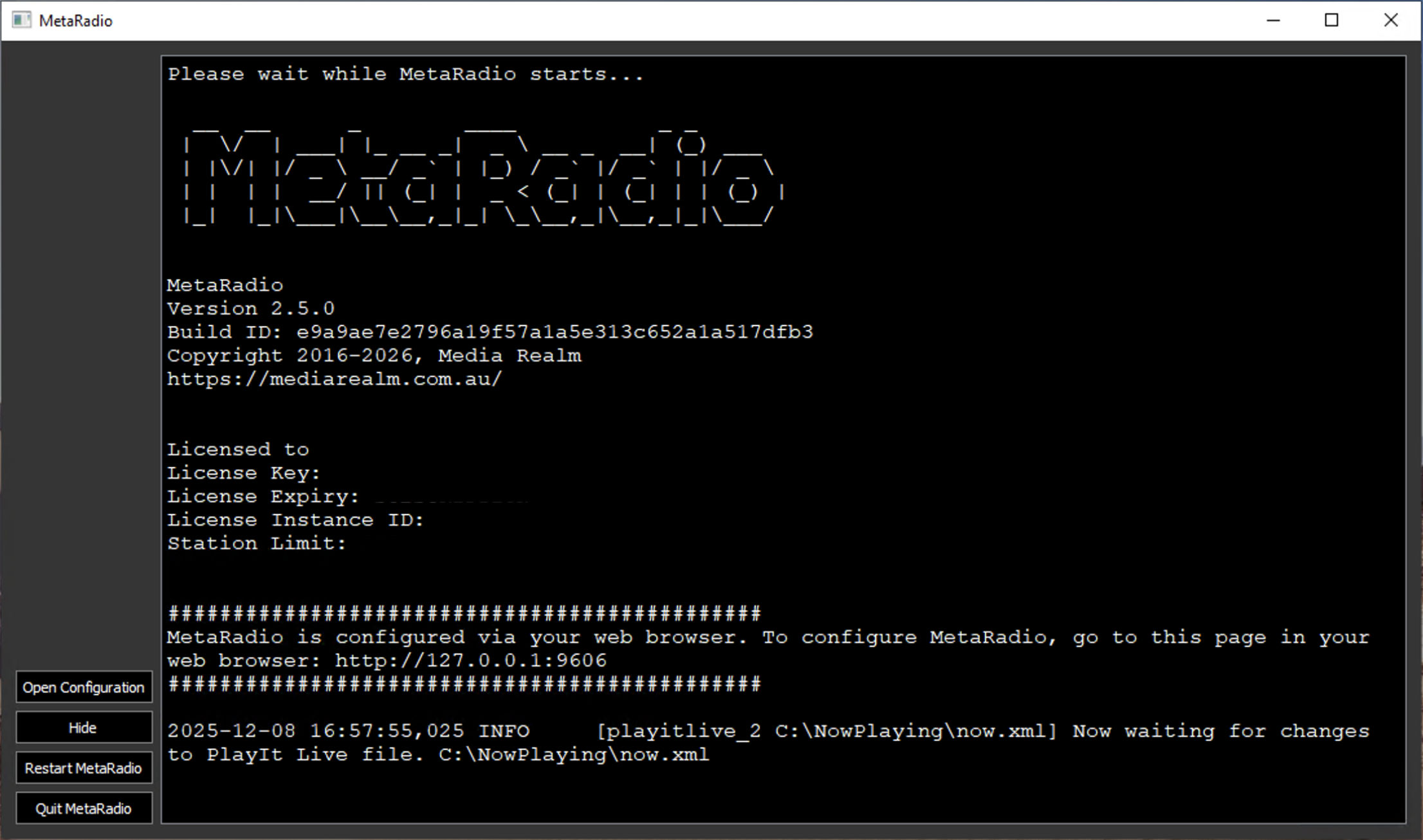
This new launcher replaces the old console view. It still has a log viewer, but has some advantages, including the ability to hide it to the system tray, a button to open the Config Editor, and a button to Restart MetaRadio.
2. Run as a Windows Service
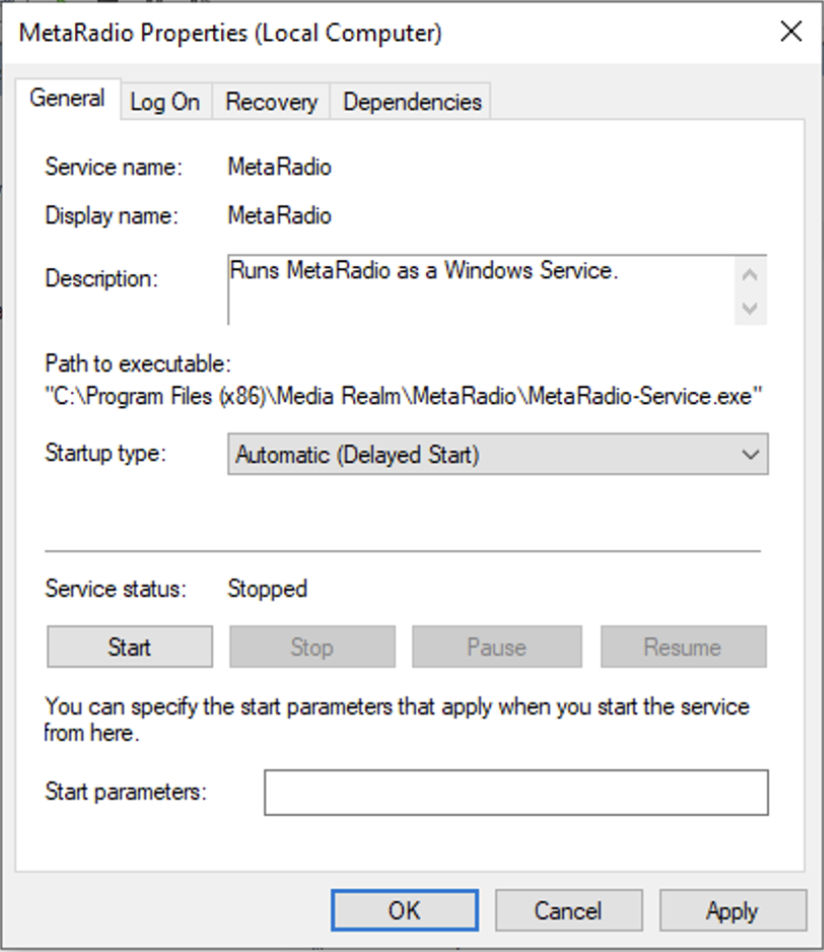
MetaRadio can now run as a Windows Service. This feature is disabled by default, but can be enabled. Simply find the ‘MetaRadio’ service, and set the start mode to ‘Automatic (Delayed)’.
When you enable the Service, you can no longer run MetaRadio via the the Desktop Launcher.
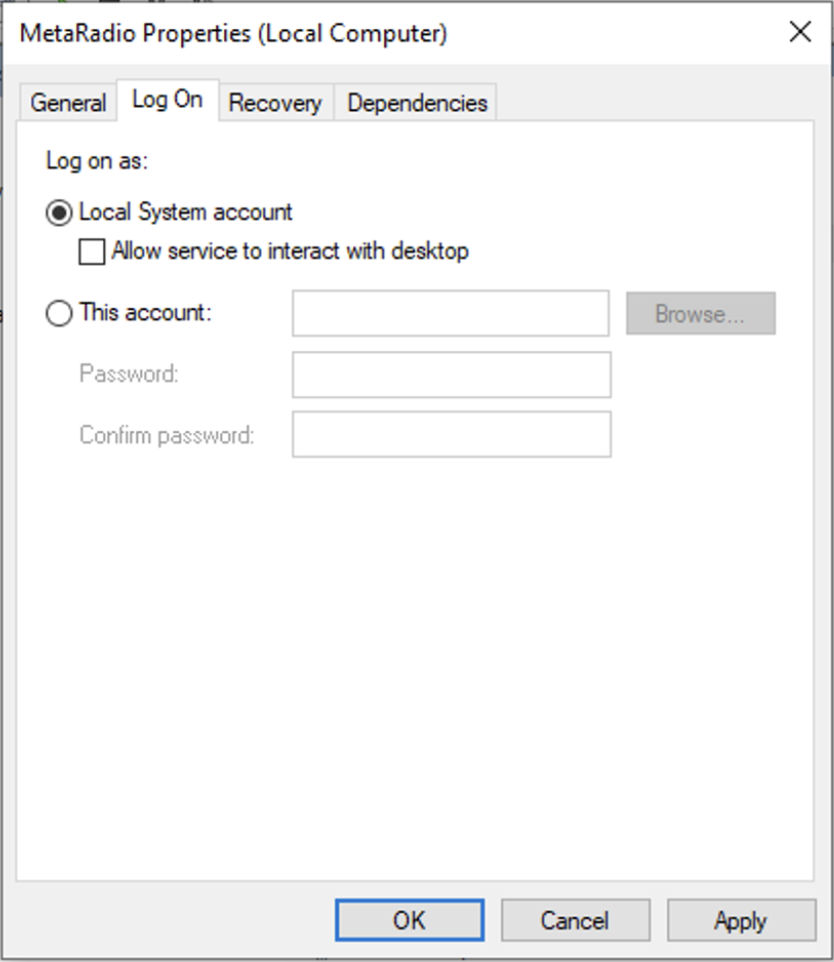
If you use any File Shares in MetaRadio, you need to be conscious of the user that is running the MetaRadio service. By default, MetaRadio Service runs as the SYSTEM user. This means UNC paths and Mapped Drives probably won’t connect. To fix this, you can change the permissions of your network shares to allow access from your PC’s Machine Account, or you can configure MetaRadio to run as a specific user. Mapped Network Drives (e.g. M:\) still aren’t recommended – please use UNC paths instead (e.g. \\server\share\file.txt).
3. Run as a Linux Container
Our first large-scale Linux Container deployment has been on-air for several months now. Once we finish adding support for all MetaRadio input and output systems in Linux, we will announce the public release of this deployment option. We expect larger groups will probably prefer Container deployment.
What’s Coming in 2026?
MetaRadio is always under active development, and sadly some features didn’t make the cut for v2.5. Rest assured, I am planning another release in early 2026. The big features we expect to release in v2.6 are:
- Ad Manager Dashboard
A dedicated interface to manage all your advertiser content. This functionality is currently spread across Data Rules and Message Scheduler, and isn’t very friendly to use. Data Rules and Message Scheduler will remain, but the Ad Manager will be the best place to schedule advertisement content. - Remote Access
Setup user accounts with granular permissions, and allow login anywhere via the web. This will make it easy for your traffic and sales teams to access the Ad Manager. - Music Image Overrides & History
v2.6 will introduce an Image History screen, which will make it simpler to audit your music image matches from Apple Music and Music Story, and then create overrides when the automatic matches are not correct or appropriate. - Stored Values
Currently, data coming in from your automation system cannot be used after the current track expires. This is unhelpful if you want to receive and re-use fields such as the current program name or presenter’s name. We will introduce a new feature to Data Rules allowing you to store custom values. These can then be used in messages via merge fields.
If you have a feature request or a problem you don’t know how to solve, please get in touch! MetaRadio is shaped by your feedback.
MetaRadio 2.5 Enhancements, Changes and Bug Fixes
MetaRadio 2.5 also includes many miscellaneous enhancements, changes, and bug fixes:
- Music Image Overrides
We have released the initial version on our Image Override feature. This allows you to force a specific image database match for specific tracks. More functionality will be coming in v2.6. - License Information Screen.
View your License information and download the latest software update from within MetaRadio. This new screen also helps you order license upgrades & support and software update renewals. - Data Rules
- Add a new option to process more than one rule per track.
- Rules are now case-insensitive.
- Add a new Action to strip all brackets from the Title, Artist and Album fields.
- Add a new Action to disable the Message Scheduler.
- Add a new Action to uppercase incoming text.
- Output Enable/Disable
Add a new checkbox to disable any output permanently, without deleting it. - HD Radio, RadioText+, and some other outputs
Add support for targeting specific radio receiver fields via <title>, <artist> and <album> fields in messages.
Bug fixes and changes include:
- Web Config: The console view is now loaded more efficiently and shouldn’t jump around as much.
- Restarts: Some systems did not cleanly restart MetaRadio. This is now resolved.
- Inputs: Create Date/Time ‘auto’ option and set it as the default.
- Input Asset Type Filtering: Make this matching case-insensitive.
- Update certificate bundle for HTTPS verification
- Message Scheduler & Reporting: Improve the UI, including better column ordering and ‘select all/none’ buttons
- RDS Encoder ASCII Outputs: Most ASCII outputs now only allow one connection at a time to each encoder. This means you don’t need to use the ‘Data Delay’ workaround when sending both RT and DPS to the same encoder.
- Generic IP Input: Allow UDP input data.
- TuneIn – Enable Message Scheduler.
- RadioPlayer – Enable Message Scheduler.
- HTTP Output: Add extra Custom Fields and a ‘Type’ field.
- HTTP Output: Allow sending arbitrary HTTP headers.
- Zetta: Allow receiving data via UDP.
- Merge Field List: Add ‘Other System’ raw fields to UI.
- Spinitron Input: Add default duration for tracks.
- Track History XML: Fix problems with the XML structure.
- Output Uppercase: Fix a bug where uppercasing one output would also uppercase other outputs at the same time.
- Inovonics RDS: Allow sending data via UDP.
- Inovonics RDS: Fix DPS command so it only does DPS, not DPS + RT.
- RDS Custom ASCII: Fix DPS mode so it works independently of RadioText mode.
- Merge Codes: Fix :OPTIONAL merge fields for global merge strings.
- AIM Radio API: Force timezone to have two-digit hours.
- Reporting Export: Fix filtering on Message Scheduler report export.
- FFMPEG Tag Parsing: Ignore Chapter marker titles.
- NPR Composer: Calculate DST offset from timezone returned from NPR’s API
- Myriad OCP: Update default template to include CDATA wrapper, and improve character encoding handling.
- Track History Output: Improve timezone handling.
- WordPress: New ‘Program Guide Upcoming’ Block.
v2.5.0.1
MetaRadio v2.5.0.1 was released 9th December 2025 and contains two bug fixes and one enhancement:
- HD Radio Artist Experience: Fix an error that would prevent fallback text from displaying
- HD Radio Artist Experience: Fix an error that would display when sending Station Logos
- Data Rules: Add ‘Type’ field edit action
v2.5.0.2
MetaRadio v2.5.0.2 was released 18th December 2025 and contains further bug fixes and enhancements:
- RDS: Title/Artist/Album tagging – Improve logic for when one field contains a subset of another
- Web Config: Merge the old Updates screen with the new Licensing screen
- HTTP (Fields) Output: Add option to change the ‘Duration’ field format (Seconds, Milliseconds, MM:SS, HH:MM:SS)
- New Output: SAM Cast
- HD Radio Artist Experience: Output Preview – Swap the order of title/artist on the preview display
- iMediaTouch: Add support for Upcoming tracks
- Enco: Fix an issue where the Enco File input would not start
MetaRadio 2.5 – How To Upgrade
MetaRadio 2.5.0 is available as a free upgrade to anyone who purchased MetaRadio on 8th December 2024 or later. If you purchased MetaRadio prior to this, you need to have an active support and updates subscription in order to access this update.
Here’s how to upgrade:
- Request the latest download link and license file. On this page, enter the same email address you used to purchase MetaRadio.
- You will receive an email with the latest download link and license file.
- If you do not receive an email, check your junk email folder. Also check you are using the same email address you originally used to purchase MetaRadio.
- If your support & updates subscription has expired, your email will contain the latest version you are entitled to access. This email will also contain a renewal link.
- On the same PC that is already running MetaRadio, close MetaRadio and run new the installer. Your existing settings will be preserved.
- Check everything is running correctly, and contact us in the event you need support.
If you have never used MetaRadio before, sign up for a free trial and then follow the full installation instructions.
Make sure you take a backup before you upgrade. If you are using a VM, we suggest taking a snapshot before upgrading.
Please Note: the Software End User License Agreement (EULA) has been updated to reflect the broader feature set and your obligations when using third-party systems and content.