


Discover how to send the now-playing data from your NPR PRSS ContentDepot MetaPub & NPR Composer/Cadence systems, to all sorts of different third party systems – such as your RDS Encoder, Digital Radio, Websites, Streaming Servers, and more.
NPR MetaPub provides live data for syndicated programming provided via the PRSS ContentDepot syndication service. This allows you to display live metadata for your NPR syndicated programming. MetaRadio can receive the data for the shows you are airing, and distribute this to destination such as RDS, HD Radio, Connected Cars, Websites, Streaming, and more.
NPR Composer & NPR Cadence are services available to stations to manage playlists & program guides. MetaRadio can connect to Composer/Cadence to receive data from these systems, and also publish data back to these systems (e.g. add tracks from your automation system to your Composer Playlists).
MetaRadio is software which acts as a connector for your radio station’s metadata. It enables you to send your now playing data to dozens of different systems, and also unlocks new opportunities for revenue and promotions by inserting commercial and promotional messages between your song data. While many automation systems can send data to some of these third party broadcast systems, MetaRadio aims to connect all your systems together and provide advanced features.


MetaRadio takes all the hard work out of connecting your metadata. There’s no need for custom scripting – MetaRadio does everything you need out of the box.
Sending song now-playing information to other broadcast systems has clear advantages for your listeners and also your station. Now Playing data enhances the listener experience by allowing them to discover new tracks, increases a station’s website traffic, and unlocks additional advertising opportunities.
Installing MetaRadio
Before we can connect to our NPR Systems, we need to download and install MetaRadio.
MetaRadio has a free trial available. You’ll need to tell us your name, email, and number of inputs you want to use. MetaRadio is licensed based on inputs:
- If you have one automation system with one channel, you only need one license – no matter how many places you want to send that data.
- If you have two data feeds from your automation system (such as a separate HD2 station), you’ll need two licenses.
- If you want to take data from an automation system, satellite system, or music fingerprinting system at different times of the day, you’ll also need multiple licenses.
When you sign up for the trial, we’ll email you a license key and an installer. Save these to your computer.
Where to install MetaRadio?
The next step is to work out where you want to install MetaRadio. MetaRadio runs on Windows. If you have a small station, you may want to install MetaRadio on your automation system PC. If you have a larger station, you may want to install MetaRadio on a separate Utility PC in your rack room, or even a Virtual Machine.
MetaRadio needs internet access to connect to the NPR services, and it needs local network access to connect to your broadcast systems, such as RDS Encoders, HD Radio System, and Streaming Encoders.
Make sure you pick a computer that’s:
- Always turned on and always connected to your network, and
- Has a network connection to your output systems too, such as your FM RDS encoder, HD Radio exciter, DAB or DAB+ headend system, and so on.
Completing the Installation
Once you’ve decided where to install MetaRadio, copy both the installer and license file over to that PC. Log in as an Administrator, and then run the installer.

The first step of the installation wizard is to supply the License File. Once you’ve done this, you can accept all the other default settings, and complete the wizard.
You’ve now installed MetaRadio, and you’re ready to start configuring it!
Running MetaRadio
Open MetaRadio from your desktop shortcut. It will open a black window showing the status, and if this is your first time running MetaRadio, it’ll also open a web browser with the MetaRadio Configuration App. If you don’t see the configuration app, the status window shows you the address you need to go to in your web browser. Any modern web browser, such as Edge, Firefox or Chrome, will work fine.
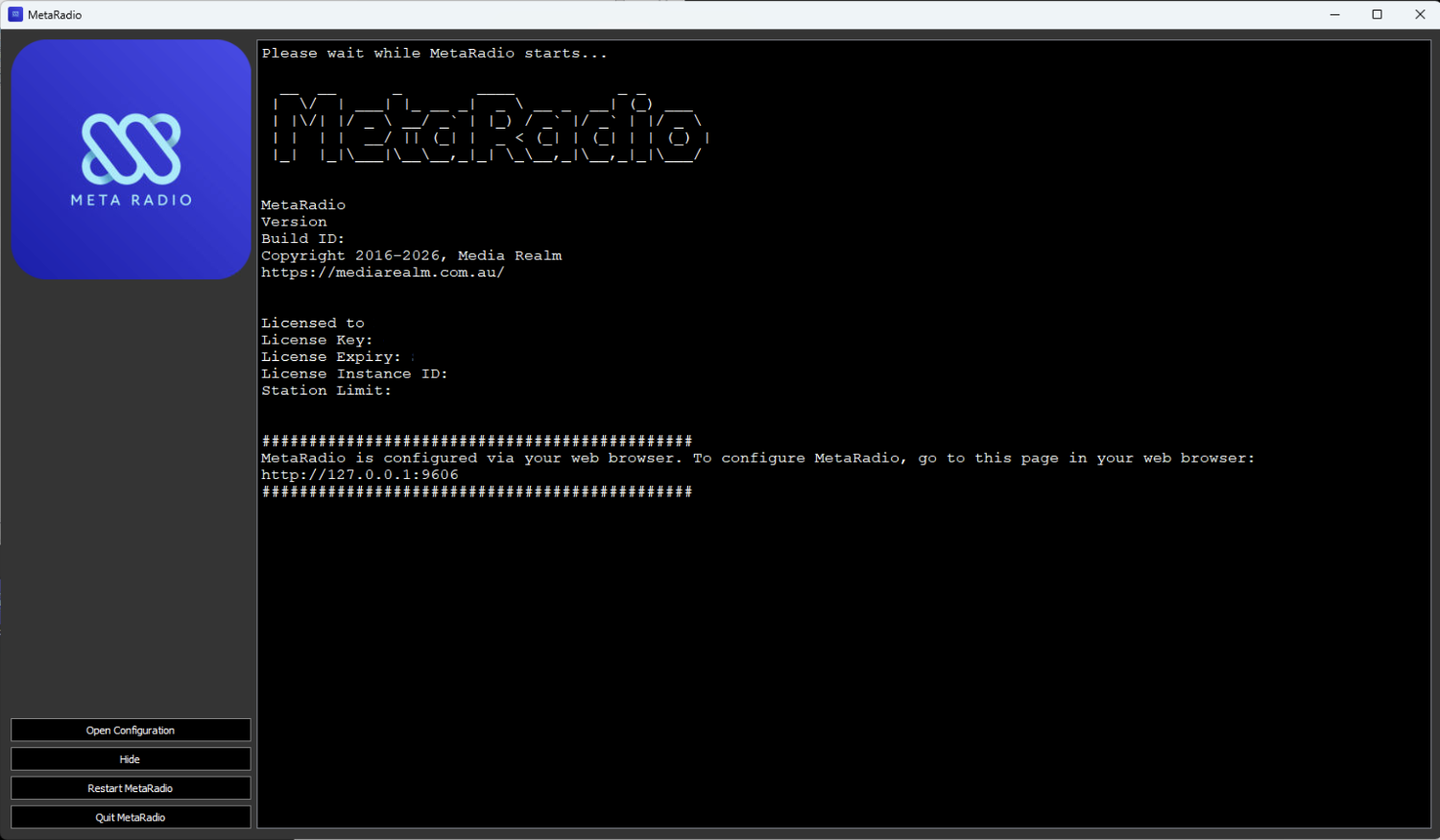
By default, the MetaRadio configuration app is available by going to http://127.0.0.1:9606/
MetaRadio’s configuration interface lets you control all settings within MetaRadio.
- The left contains the menu with various options – including the Input and Output settings.
- The centre of the screen contains information about your system, including license details, and a summary of the inputs and outputs you have setup.
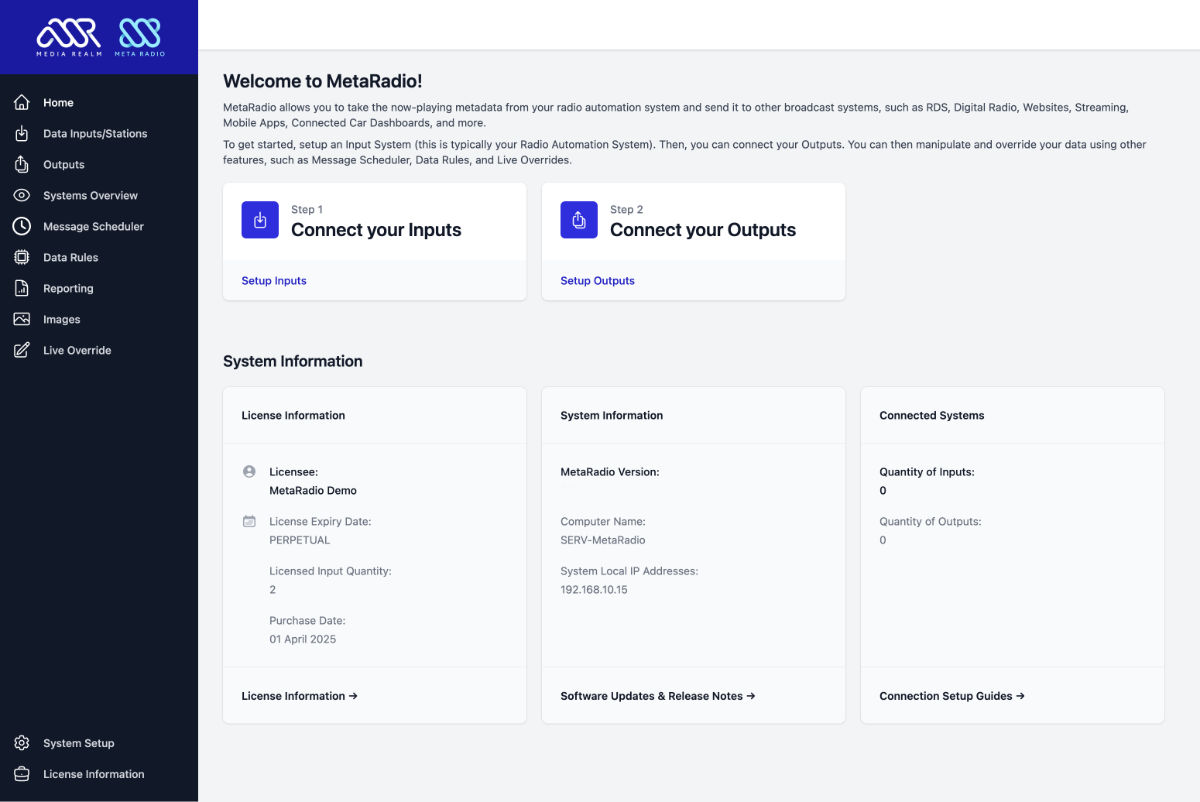
The options you see available will vary depending on the version you have installed, and the license options you have installed.
Configuring MetaRadio for NPR MetaPub
Now that we’ve installed MetaRadio, we can connect it to NPR MetaPub.
MetaRadio allows you to send data from an Input (such as NPR PRSS MetaPub), to any number of outputs. We need to configure the inputs first, and then our outputs second.
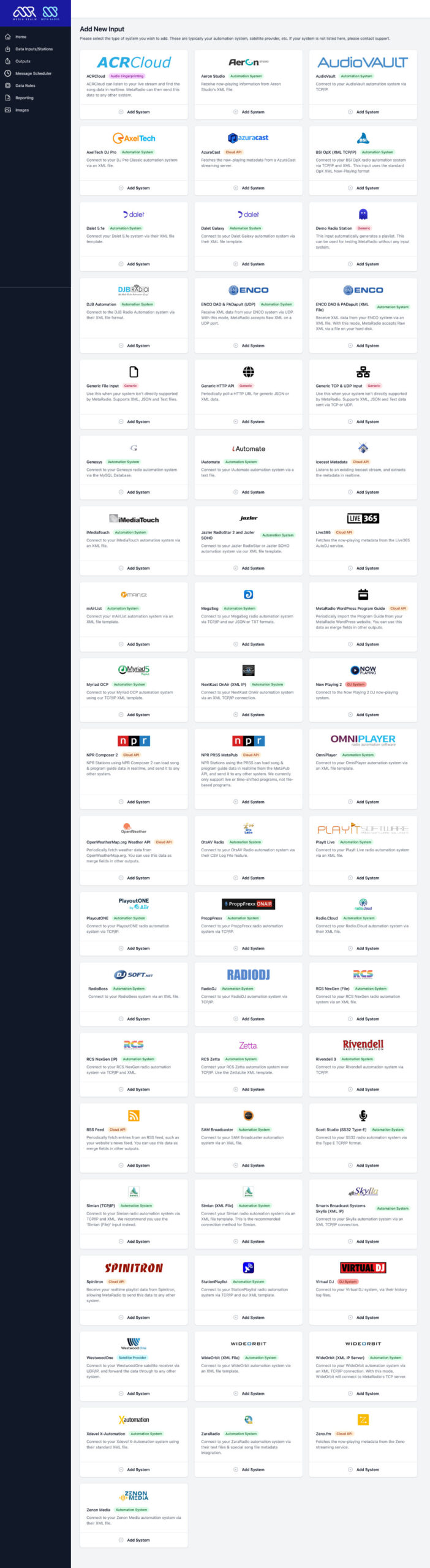
Select the “inputs” menu item on the left, and click “Add New System”. Scroll down through the list of systems and select “NPR PRSS MetaPub”. This screen sometimes takes time to load, as it needs to load data from the NPR API. This system can only be added within the United States, where connections are allowed by NPR’s network.
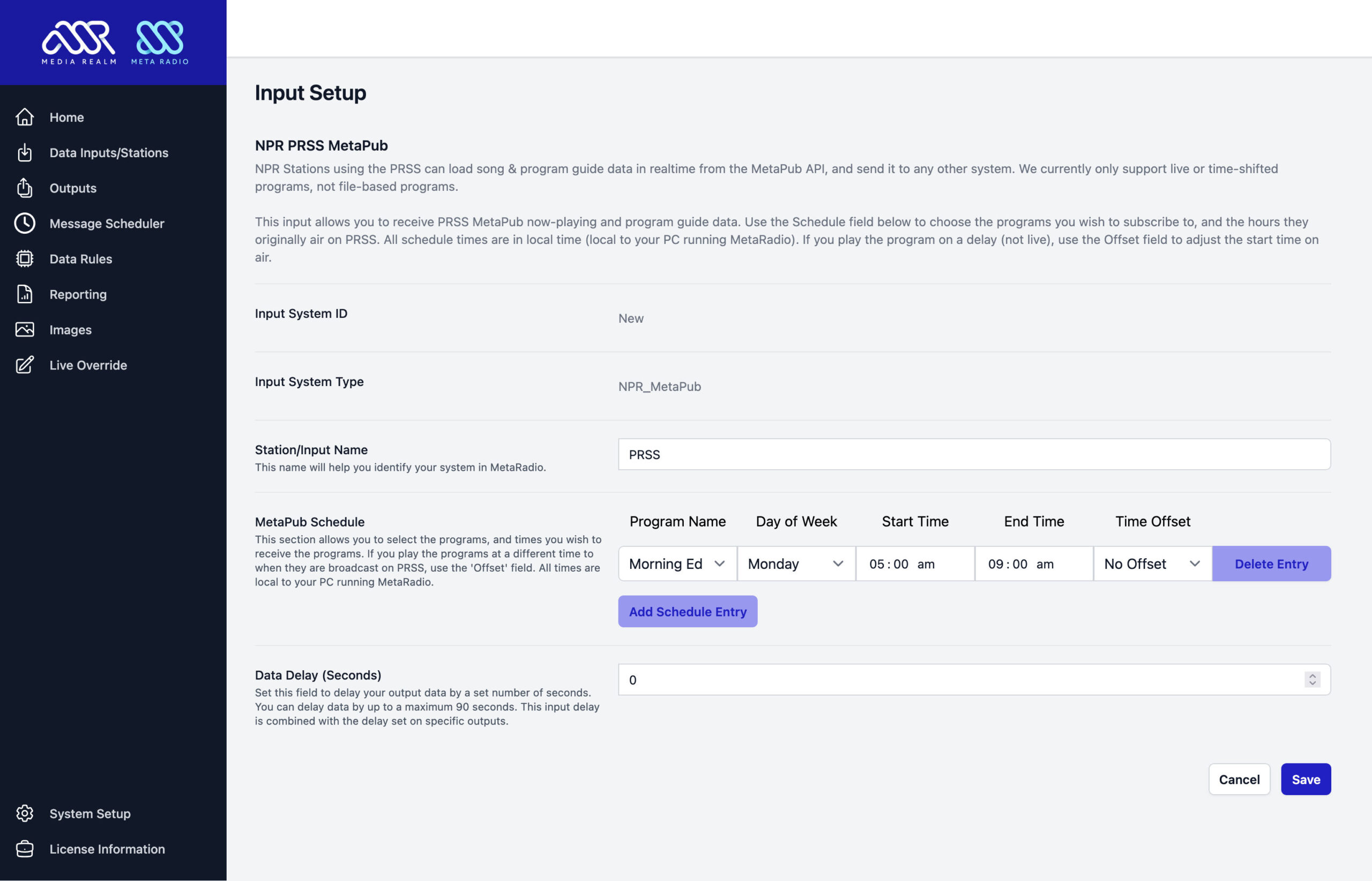
Enter a name for you station, and then start configuring your NPR MetaPub Program Guide. This guide determines which programs are broadcast, and at which times. You can add unlimited entries.
The Start and End Times are when the program is broadcast originally on the PRSS. The Time Offset allows you to rebroadcast this show on delay at a later time. All times are in the timezone of the PC running MetaRadio (not necessarily US Eastern time).
Click Save, and then click “Apply & Restart” up the top to restart MetaRadio.

Configuring MetaRadio for NPR Composer/Cadence
You can also connect MetaRadio to NPR Composer/Cadence. There are two different ways to connect:
1. Composer as the data source
Composer contains data (program guide & music playlists) which can be brought into MetaRadio as an input. Enter your UCS ID (a 25-character ID to identify your station within Composer).
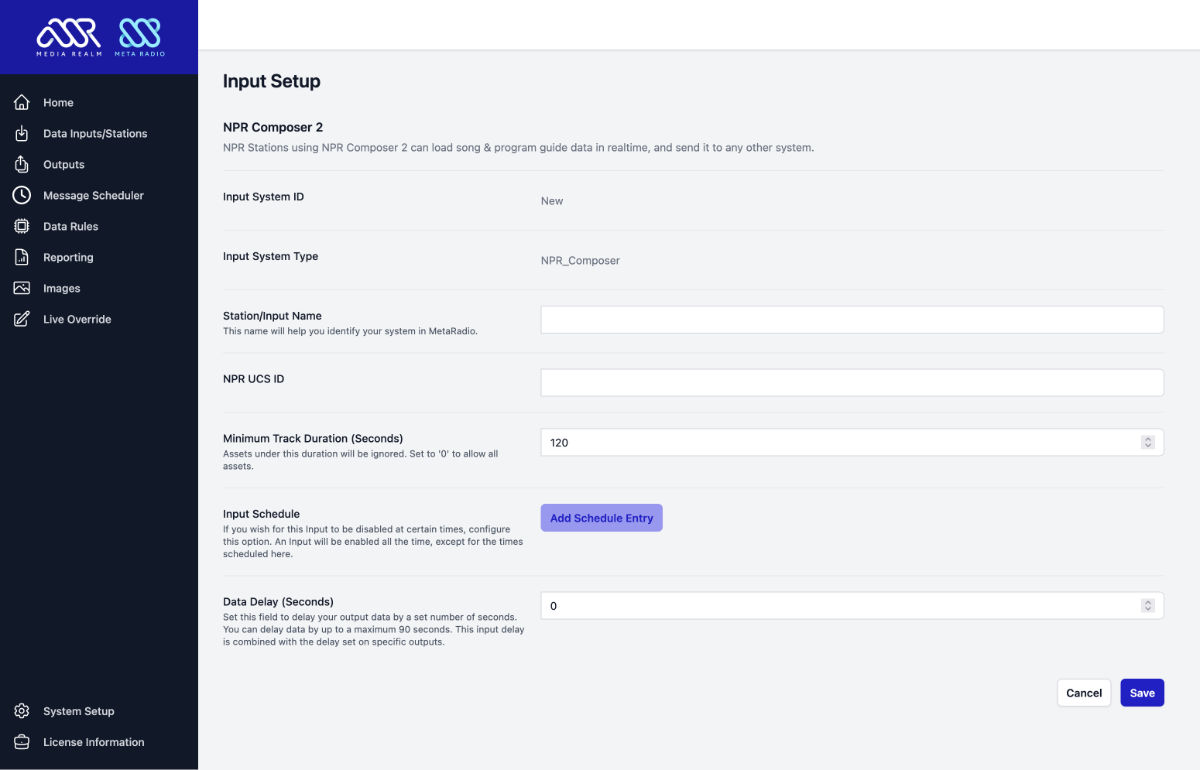
Click Save, and then click “Apply & Restart” up the top to restart MetaRadio.
Once you have connected Composer, the live data from Composer is available as Merge Fields to use in your Output systems in MetaRadio.
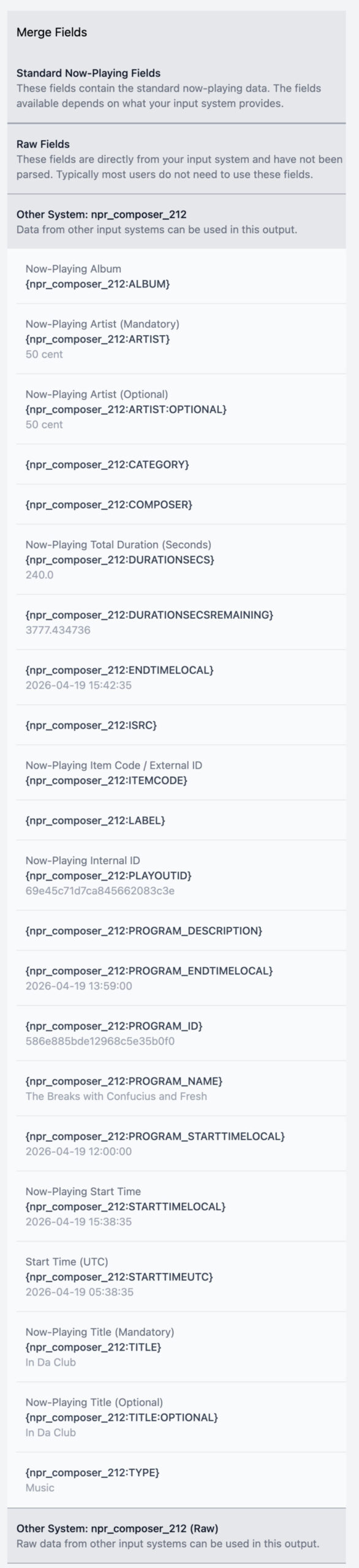
The usual merge fields are available (e.g. {TITLE} and {ARTIST}). Additional fields, such as {PROGRAM_NAME} are also available.
If no song is playing, you can still use the current program name. Use the ‘Other System’ fields to access this data from within your Fallback Text Format fields.
2. Composer as the data destination
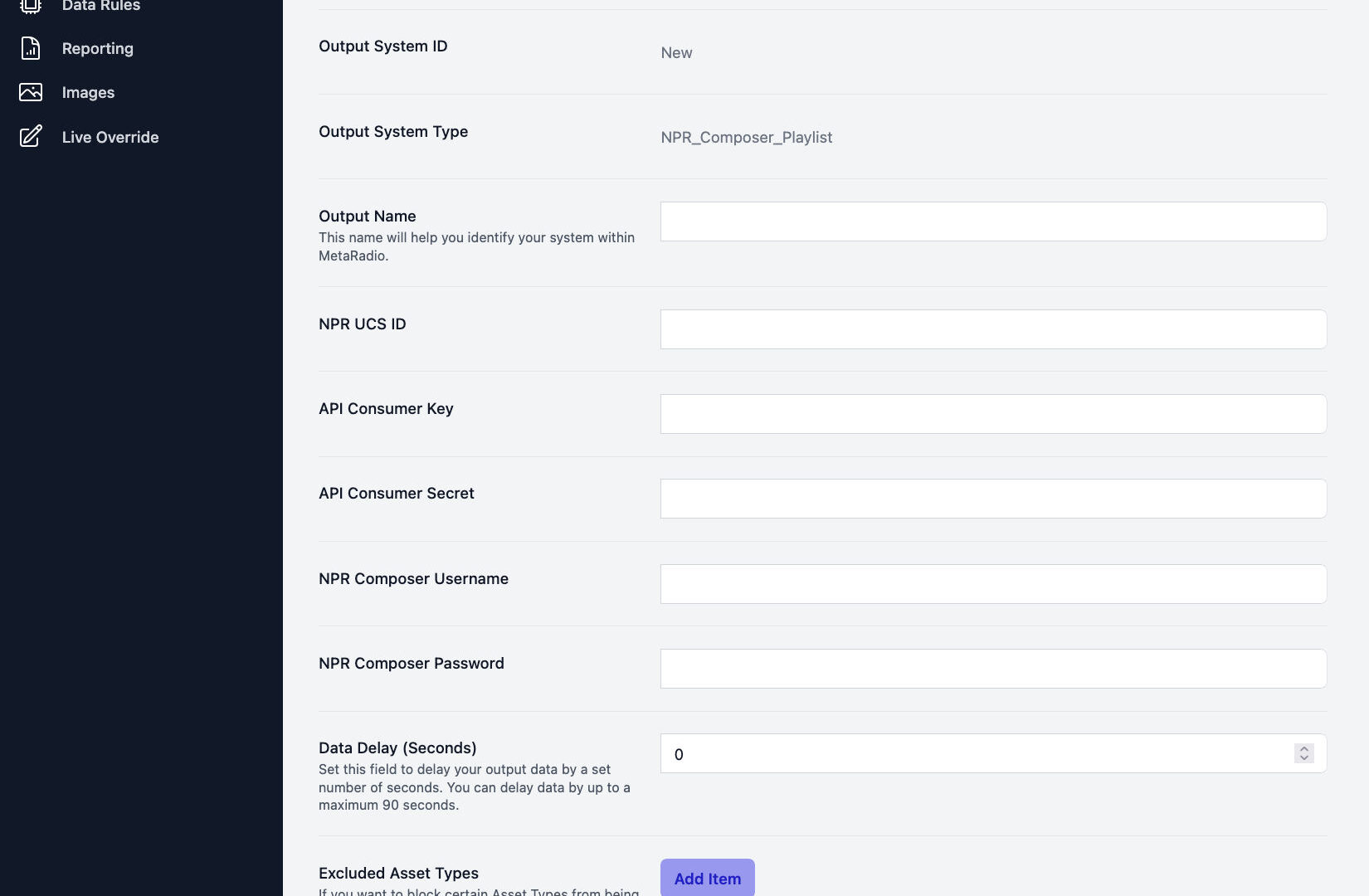
Composer can also act as an output from MetaRadio. When you operate in this mode, song data in MetaRadio (e.g. from an automation system) is saved to the active playlists in Composer. To do this, create an output of type ‘NPR Composer (Add to Playlist)’.
You will need to enter the API Authentication details for Composer.
Testing Your Now Playing Data
If your input configuration is successful, the black MetaRadio window will say “Now Playing” with some track details every time a new track starts in NPR PRSS MetaPub or NPR Composer/Cadence.
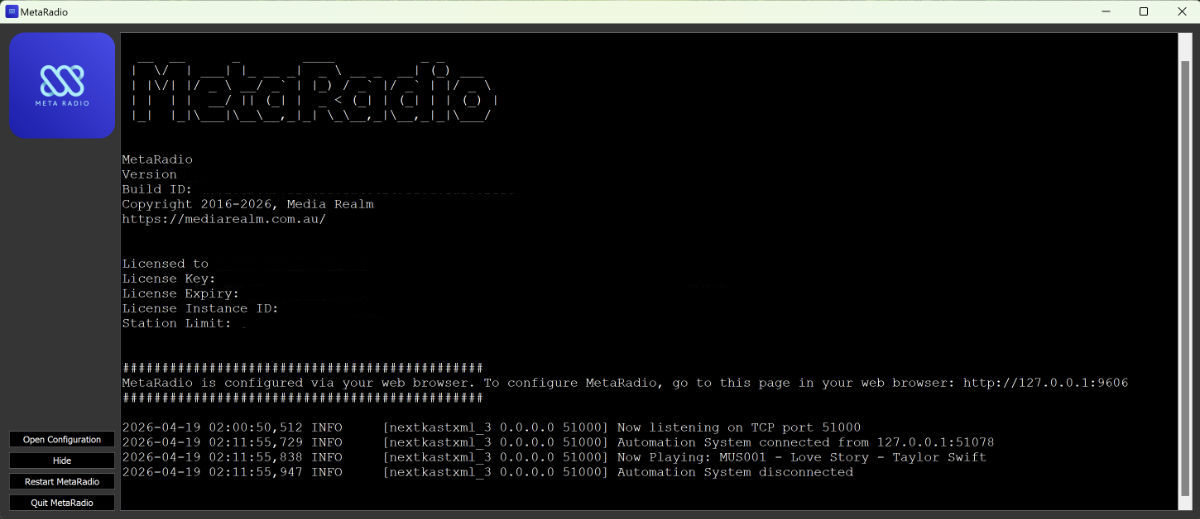
This means your configuration is done, and you can now move onto configuring your Outputs. An Output in MetaRadio is any destination system you want to send data to – a RDS Encoder, HD Radio System, Website, Digital Radio, Streaming Server, Mobile App, etc.
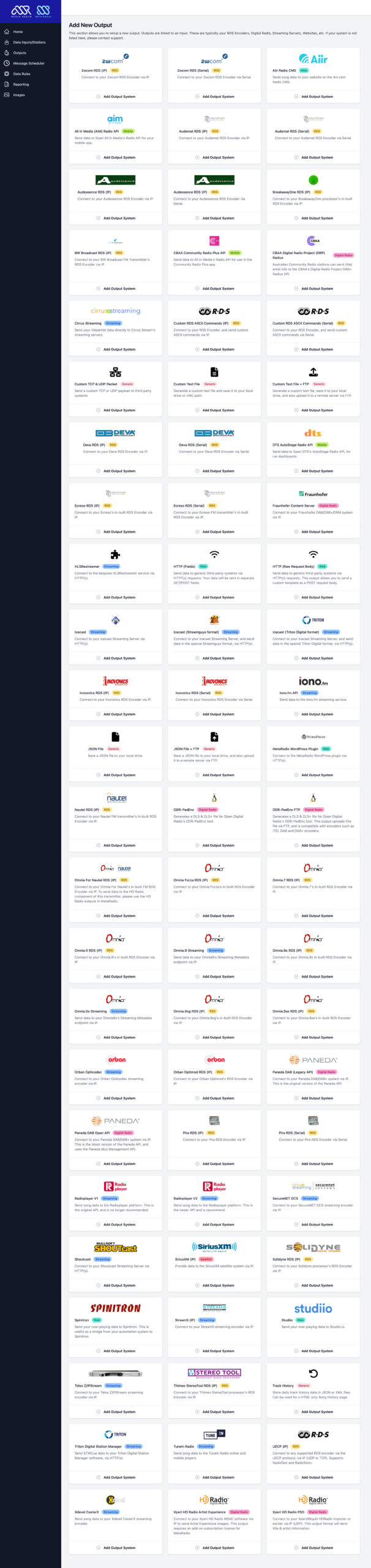
In the left menu of MetaRadio, click on “Outputs”. Find your station, and click “Add Output”. Now you can select your output system from the list, and configure its settings. Our website has instructions on configuring all the most popular systems, or contact our support team if you need assistance.
Support & Next Steps
Thanks for choosing MetaRadio to manage your now playing song data needs. Make sure you explore all the features, such as Data Rules, input system scheduling, message scheduling, and all of our advanced output options. Please get in touch with us if you ever need assistance!
If you have any trouble with this process or it’s not working, please send the MetaRadio log files through to our support team. We’re here to help! You’ll find the support bundle file in MetaRadio’s dashboard.
FAQs
Can I have multiple NPR PRSS MetaPub & NPR Composer/Cadence Stations connect to one MetaRadio instance?
Yes. You can connect unlimited NPR PRSS MetaPub & NPR Composer/Cadence stations to the one MetaRadio instance on one PC.
You will need one MetaRadio license per NPR PRSS MetaPub & NPR Composer/Cadence station. You can buy multiple licenses online. If you have purchased licenses separately and need them combined (so they can run one one PC), please email support your purchase receipts and we will make this change for you.
Can I disable NPR PRSS MetaPub & NPR Composer/Cadence Now Playing data during certain times?
Yes. This is a common request for stations that take satellite programming during certain hours, or for stations which use Audio Fingerprinting to detect tracks not played via your automation system. MetaRadio allows you to create a schedule for your automation system input. In your Input Settings, look for the “Input Settings” section. Any day/time entries specified here will disable your NPR PRSS MetaPub & NPR Composer/Cadence data.

What does “Zero items are currently playing” mean?
When a track is sent from NPR PRSS MetaPub & NPR Composer/Cadence to MetaRadio, it checks a number of conditions before accepting the data and passing it onto your output systems. These settings include the configurable “Minimum Track Duration” settings, as well as your Data Rules. If these conditions are not met, MetaRadio will say “Zero items are currently playing”.