

I’m excited to announce MetaRadio v2.6 is now available. This release contains our new Web Access feature, Message Scheduler enhancements, Image Matching History, Images to more outputs, and a lot more.
This is the first major release of 2026. Thank you to everyone who provided feedback during the beta period. This is a big release with a lot of new features that can benefit broadcasters big and small. After you upgrade, ask yourself these questions to see if you’re making the most of MetaRadio:
- Am I using the Message Scheduler to unlock new revenue opportunities? Consider offering custom text and images for your advertisers.
- Am I sending metadata to connected dashboard systems such as DTS AutoStage and Radioplayer?
- Am I ensuring I have images and text attached to all station promos? Use the new Message Scheduler features to achieve this.
- If I have a HD Radio transmitter, am I using the HD Radio Artist Experience?
- Am I utilising additional inputs, such as RSS Feeds from my website and Weather? These additional types of inputs can provide extra value to your listeners, and drive more traffic to your website.
Take control of your metadata with MetaRadio – the ultimate tool for managing your radio station’s appearance effortlessly. Send your metadata anywhere – RDS, HD Radio, DAB, Websites, Streaming, Apps, Connected Cars, and more! MetaRadio is trusted by radio broadcasters worldwide to handle their song and program metadata, as well as delivering advertising and promotional messages to radio receivers. Advanced features such as Data Rules, Message Scheduling, Reporting, Images, Live Overrides, and System Scheduling allow endless customization of your metadata.
MetaRadio Web Access
MetaRadio is now accessible anywhere via the web! While MetaRadio still runs on your local PC, we are now offering a secure remote access tool so you can access MetaRadio via any web browser. You don’t need to do any port-forwarding or VPNs – we provide a secure connection.
Simply create user accounts in the new User Accounts screen (found under the ‘System Setup’ menu item). You can assign permissions to each user based on what you want them to access.
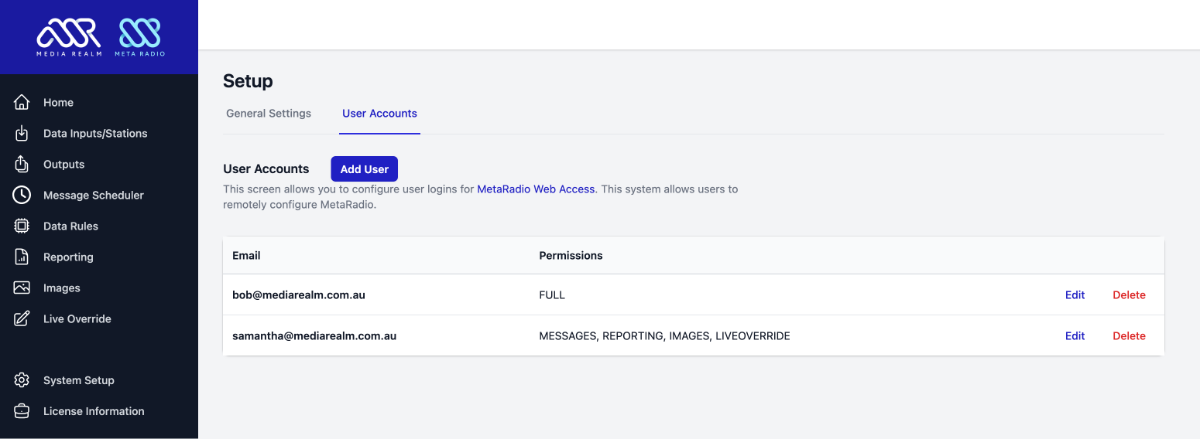
Once your user accounts have been created, you can login via https://webaccess.metaradio.net/
MetaRadio has a new option to allow remote access by the Media Realm Support Team. This is disabled by default for existing users, but enabled by default for brand new installations. You can toggle this option in the System Setup menu.
You need an active MetaRadio Support & Updates subscription to use this feature.
Live Overrides
One of the most requested features has been a way to manually enter track info directly into MetaRadio. This is a common approach for presenters playing music from CD and Vinyl. While music recognition tools (such as ACRCloud) provide an automated solution, others prefer the control offered via a manual data entry screen.
Combined with the new Web Access feature, this means presenters can enter data live from the studio or a remote location.
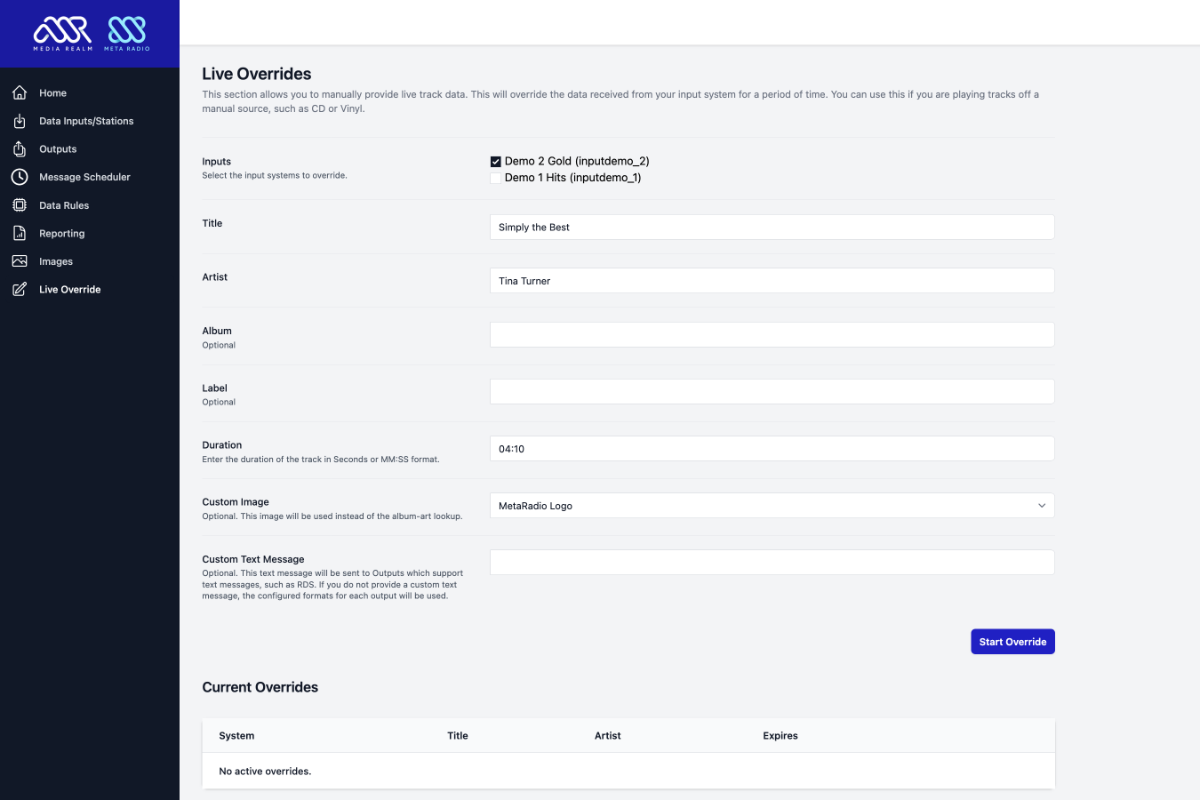
Once an override has been entered, MetaRadio will ignore incoming data from the input system until this overridden track expires. You can also manually cancel it if needed.
Image Match History
MetaRadio can look up music cover art from third-party providers. The new Music Image History screen allows you to see which images were used from these online databases, and manually select your own image from the database if you’re not happy with the automatic match.
You can also view ‘non-matches’, allowing you to identify tracks that have no image associated with them.
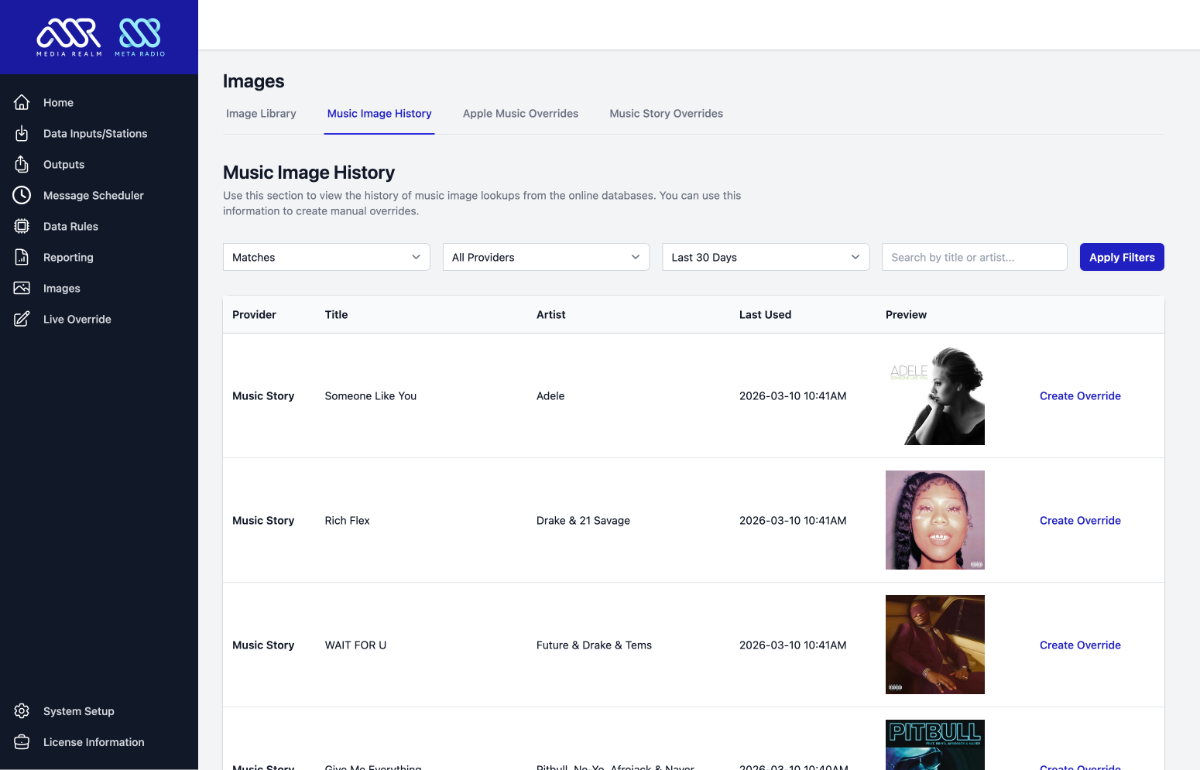
Image Overrides
v2.5 introduced the Image Library, which allows you to upload custom images for use on the HD Radio Artist Experience. These images can now be used by other outputs, such as DTS AutoStage, mobile apps and websites.
There are two ways you can manually attach images to tracks:
- Message Scheduler:
The Message Scheduler allows you to select a custom image for every message. Simply select your image from the “Custom Image” drop-down when creating a message. Message can be linked to certain tracks, or scheduled regardless of the content playing. - Data Rules:
You can match and override the image for a specific incoming track, or groups of tracks, based on flexible rules.
These images are hosted on Media Realm’s CDN, meaning you do not need to run your own web server to publish these images. You need an active MetaRadio Support & Updates subscription to use this feature.
Message Scheduler Enhancements
Our Message Scheduler has received an upgrade. It’s now easier than ever to schedule promotional messages, advertiser messages, and other periodic text you want to send to your outputs.
This feature can be used to unlock additional revenue. Stations are using this feature to sell ads on RDS, Digital Radios, and Connected Radios. Consider these two options:
- Display visual ads in sync with audio ads.
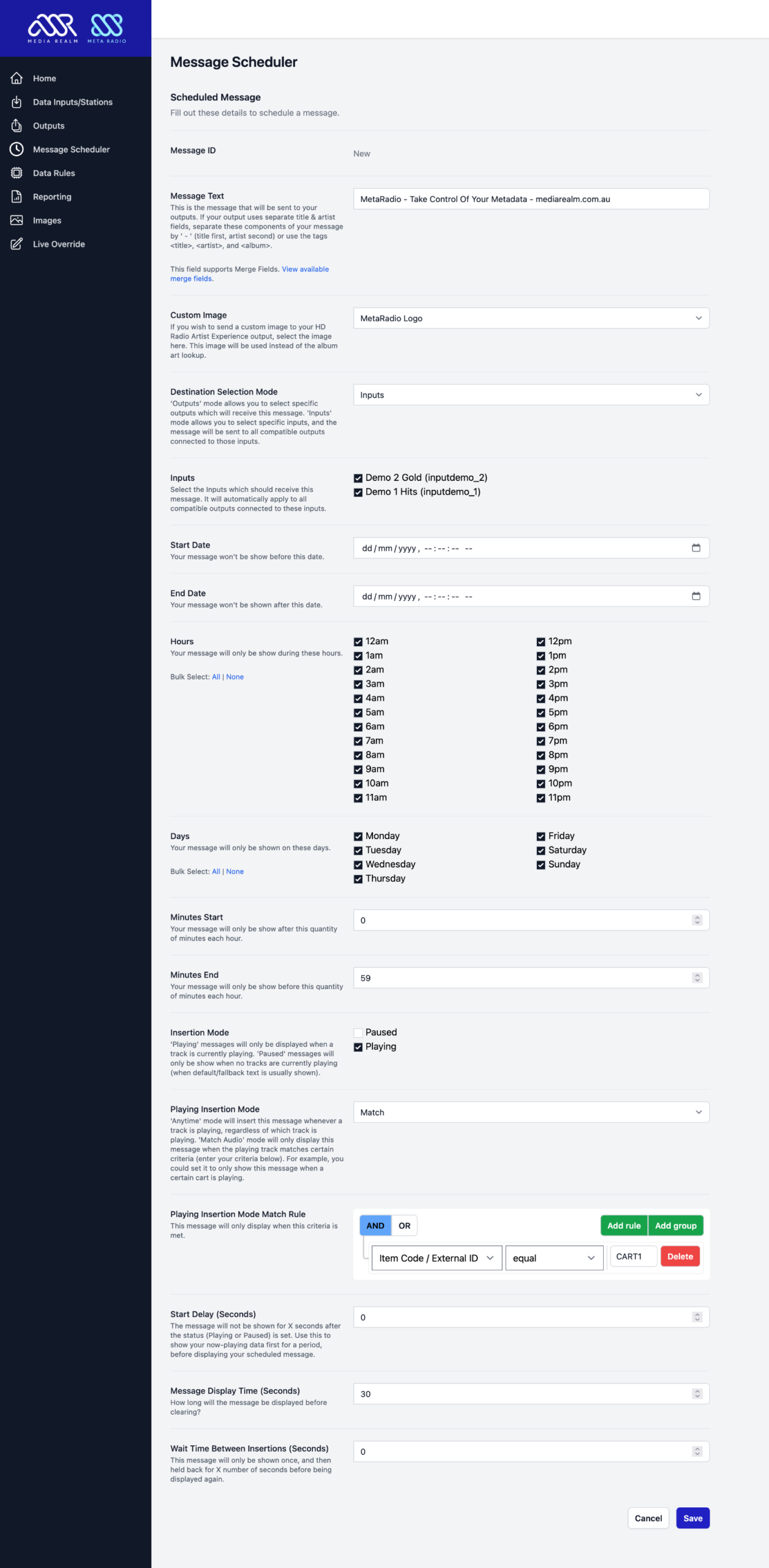
To achieve this, create a Message, set it to ‘Playing Match’ mode, link it to the Item Code (Cart Number) from your automation system, and set the ‘Start Delay’ time to 0. Now, whenever that audio plays on-air, your Message Scheduler message (with custom text and image) will be sent to all compatible outputs. - Display visual ads while a song is playing.
Some broadcasters want to display a 30 second ad during the middle of a song. To achieve this, create a Message, set it to ‘Playing Anytime’ mode, and set the ‘Start Delay’ time to ’30’ seconds, the ‘Display Time’ to ’30’ seconds. Now, anytime a song plays, it will show the now-playing data for 30 seconds, your ad for 30 seconds, and then return to your now-playing data again.
These are just two of the ways you can use the Message Scheduler to unlock additional revenue streams. Both these options have been possible in previous MetaRadio releases, but these changes make it easier. Combined with the Web Access feature, your sales and traffic teams can now take control of scheduling.
The new options available in v2.6 are:
- System Selection
You can now target your message to specific inputs, rather than outputs. When you target a specific input, the message will be sent to all linked outputs. - Insertion Mode – Playing/Paused
One message can now target both ‘Playing’ and ‘Paused’ modes. Previously you had to create two separate messages. - Playing Insertion Mode
You now have two options for running messages while another track is playing – ‘Anytime’ and ‘Match’. ‘Anytime‘ mode will insert the message whenever a track is playing, regardless of which track is playing. ‘Match‘ mode will only display this message when the playing track matches certain criteria (you can craft your criteria). For example, you could set it to only show this message when a certain cart is playing.
Data Rules – Output System Targeting
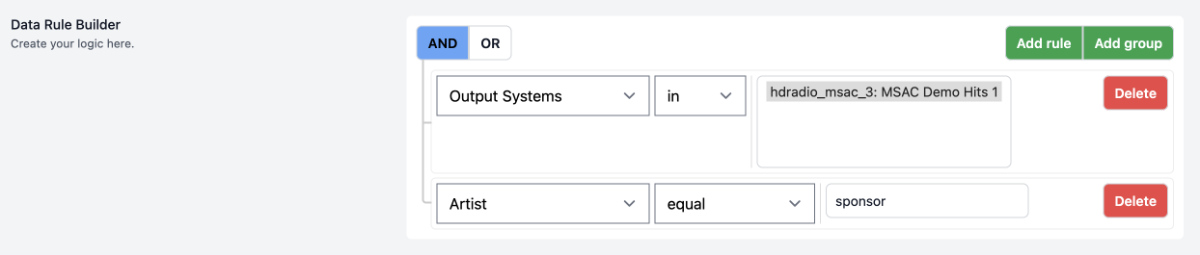
Previously, Data Rules would apply to every output system. You can now choose to run Data Rules only for specific output systems. This will help you tailor the data to match specific output system needs. For example, you may want to send ad trigger metadata to your streaming provider, but not your RDS – Data Rules can now assist with this.
New Systems
As always, we have a selection of new systems available to connect within MetaRadio:
- PlayoutONE Standard
Users of the free PlayoutONE Standard automation system can now send now-playing data to MetaRadio. - Arrakis Apex
Users of Arrakis Apex automation system can now send now-playing data to MetaRadio. - BreakawayCD
If you use the new BreakawayCD software to play CDs, you can now fetch the CD metadata and use it as input data in MetaRadio. - NPR Composer Playlist Push
Users of NPR Composer can now automatically add their songs to Composer playlists. This allows you to automatically populate these playlists from your input systems, such as your automation system or music fingerprinting provider. - ACRCloud Custom Bucket Upload
Users of ACRCloud can now upload files stored on their local hard drive to Custom Buckets. This will allow you to upload your ripped content and other audio files for detection. We have also added a new option to accept the custom bucket audio metadata as an input to MetaRadio (filterable by specific buckets). - DreamEncoder
Send your metadata to the DreamEncoder streaming encoder software. - BUTT
Send your metadata to the free BUTT streaming encoder software.
What’s Coming Later in 2026?
Our next major release is expected mid-2026. Some of the features we are currently working on include:
- Stored Values
Currently, data coming in from your automation system cannot be used after the current track expires. This is unhelpful if you want to receive and re-use fields such as the current program name or presenter’s name. We will introduce a new feature to Data Rules allowing you to store custom values. These can then be used in messages via merge fields. - Program Guide
We will be introducing a Program Guide feature into MetaRadio. This will provide a dedicated place to store your program guide, which can then be sent to output systems. - Web Widgets & APIs
We will be introducing a series of hosted website widgets, allowing you embed MetaRadio data directly on any website, regardless of the CMS or hosting provided used. Of course, you can already use our Radio Website platform.
If you have a feature request or a problem you don’t know how to solve, please get in touch! MetaRadio is shaped by the feedback of broadcasters just like you.
MetaRadio 2.6 Enhancements, Changes and Bug Fixes
MetaRadio 2.6 also includes many miscellaneous enhancements, changes, and bug fixes:
- All Inputs: Ignore incoming data if it’s in the past (previously this was only done for certain outputs). MetaRadio must be configured with the correct datetime format to match what your Automation System supplies.
- Output Preview: Enable this feature for more output systems.
- Data Delay: Add this option to all inputs, allowing this to apply to all linked outputs (rather than configuring outputs individually).
- Web Config: Add ‘Disabled’/’Expired’ labels to Outputs, Messages & Data Rules.
- Upcoming Tracks: We now calculate our own start times based on the running duration, rather than blindly trusting the scheduled times from your automation system.
- Reporting: Add Composer & Label fields (where data is connected from input system – contact us if these fields are not populating from your system).
- Reporting: Add Unicode BOM to CSV files.
- Support Bundles: Add a new UI for creating these bundles, including automatic upload to Media Realm support.
- Database Retention Period: Add a default retention period (365 days) so the database doesn’t grow endlessly. This can be changed on the System Setup screen. The purge happens daily around midnight.
- Message Scheduler: Improve timing at the start of tracks for messages with ‘0’ start delay.
- TCP Inputs: Improve handling of multiple connections to the same input at the same time.
- TCP Inputs: Improve handling of persistent connections from automation systems.
- Specific system changes:
- AudioVault: Add support for incoming ‘AlbumTitle’ field.
- BreakawayOne: Add DPS option.
- Dalet 5.1: Add ‘albumName’ field support.
- DTS AutoStage: Add a new ‘Default Images’ option.
- NPR MetaPub: Use supplied program images.
- Omnia.9: Add RT+ support.
- PlayoutONE: Use Windows-1252 as default encoding.
- PlayoutONE: Support a wider range of duration formats.
- RCS Zetta: Add ‘Label’ field.
- SAMCast: Add text format settings.
- StreamS: Allow using text formatting fields & Message Scheduler.
- WideOrbit: Add a separate input feed (file or TCP socket) for ‘upcoming’ data (Stack Change). The main input should only contain ‘Start Play’ events.
- ZaraRadio: Improve UTF-8 handling.
Bug fixes include:
- Inputs: Fix duplicate track detection.
- Merge Fields: Expire Global Merge Codes once the track duration has elapsed.
- Merge Fields: If a raw merge code doesn’t exist, skip this message.
- Installer: Fix an error that’d prevent the Windows Service from being installed.
- HD Radio Artist Experience: Fix encoding of quotation marks.
- NPR MetaPub: Fix a bug where credits weren’t being loaded for some items.
- NPR MetaPub: Fix an error that occurred when the same show was scheduled twice in the same day.
- RCS Zetta: Fix upcoming data when only a small quantity of upcoming data is received.
- Track History: Fix Unicode in XML outputs and add more error checking if reading blank/invalid file.
MetaRadio v2.6.1
MetaRadio v2.6.1 was released on 8th April 2026. This is a minor update with bug fixes and new systems.
New Systems in v2.6.1:
- Axia Pathfinder Core
Send live data to Pathfinder Core’s Memory Slots. You can use this to display your live data on Pathfinder User Panels. - Futuri Streaming
Send data to Futuri Transmitter encoding software. - Thimeo Stereo Tool Streaming
Send data to Stereo Tool’s in-built streaming encoder. - AEV EVO RDS Encoders (SNMP)
Send data to AEV RDS Encoders via SNMP SET commands.
Changes in v2.6.1:
- Outputs & Message Scheduler: New option in outputs to exclude specific asset types from outputs, which means the message scheduler can now match to specific spots without other spots sending to the output.
- WideOrbit and Zetta: Add ‘Category’ field.
Bug fixes in v2.6.1:
- Web Config: Fix a UI bug with Merge Fields in the Message Scheduler
- Web Access: Fix caching issues with image previews when switching between multiple systems
- Merge Fields: Fix raw merge fields with ‘@’ symbol in them
- Data Rules: Fix support for ‘Raw’ merge fields
- Data Rules: Allow merge fields in ‘Message Override’ field
- Images: Fix ‘Non-Match’ reporting for Artist Experience
- NexGen, Skylla & NextKast: Fix an error where these inputs wouldn’t start
- iMediaTouch: Fix an issue when processing data
- Inovonics RDS: Change the RT command so RT & DPS can be sent separately
MetaRadio v2.6.2
MetaRadio v2.6.2 was released on 27th April 2026. This is a minor update with bug fixes and enhancements.
Changes in v2.6.2:
- DTS AutoStage: Option to automatically re-transmit data periodically for long tracks
- DTS AutoStage: Add message fields
- Outputs: Add new ‘Share to Input’ output, as a different way of merging data between multiple systems.
- Message Scheduler: Performance enhancements
- Web Config: Add links to some new help articles
- Cirrus, SecureNet & SteamS: Send ’Type’ field
- StationPlaylist: Add separate fields for type & category
Bug fixes in v2.6.2:
- DB Cleanup: Fix a warning with this daily process
- Apple Music: Fix an error if the Preview URL isn’t available
- Omnia 9sg: Fix URL parameter
- Proppfrexx & iAutomate: Fix an issue with filename parsing
- RDS ASCII TCP: Only log success if there’s no TCP failure
- StereoTool Streaming: Properly send tags
- WordPress: Use localised date format in song finder dropdown
MetaRadio 2.6 – How To Upgrade
MetaRadio 2.6.1 is available as a free upgrade to anyone who purchased MetaRadio on 8th April 2026 or later. If you purchased MetaRadio prior to this, you need to have an active support and updates subscription in order to access this update.
To upgrade from v2.5 or newer, simply go to the License Information screen in MetaRadio. This screen will provide you with a download link, and also has information on how to renew or upgrade your license (if needed).
To upgrade from v2.4 or earlier, follow these instructions:
- Request the latest download link and license file. On this page, enter the same email address you used to purchase MetaRadio.
- You will receive an email with the latest download link and license file.
- If you do not receive an email, check your junk email folder. Also check you are using the same email address you originally used to purchase MetaRadio.
- If your support & updates subscription has expired, your email will contain the latest version you are entitled to access. This email will also contain a renewal link.
- On the same PC that is already running MetaRadio, close MetaRadio and run new the installer. Your existing settings will be preserved.
- Check everything is running correctly, and contact us in the event you need support.
If you have never used MetaRadio before, sign up for a free trial and then follow the full installation instructions.
Make sure you take a backup before you upgrade. You can backup all your settings by creating a copy of this hidden folder: C:\ProgramData\Media Realm\MetaRadio\. If you are using a VM, we suggest taking a snapshot before upgrading.